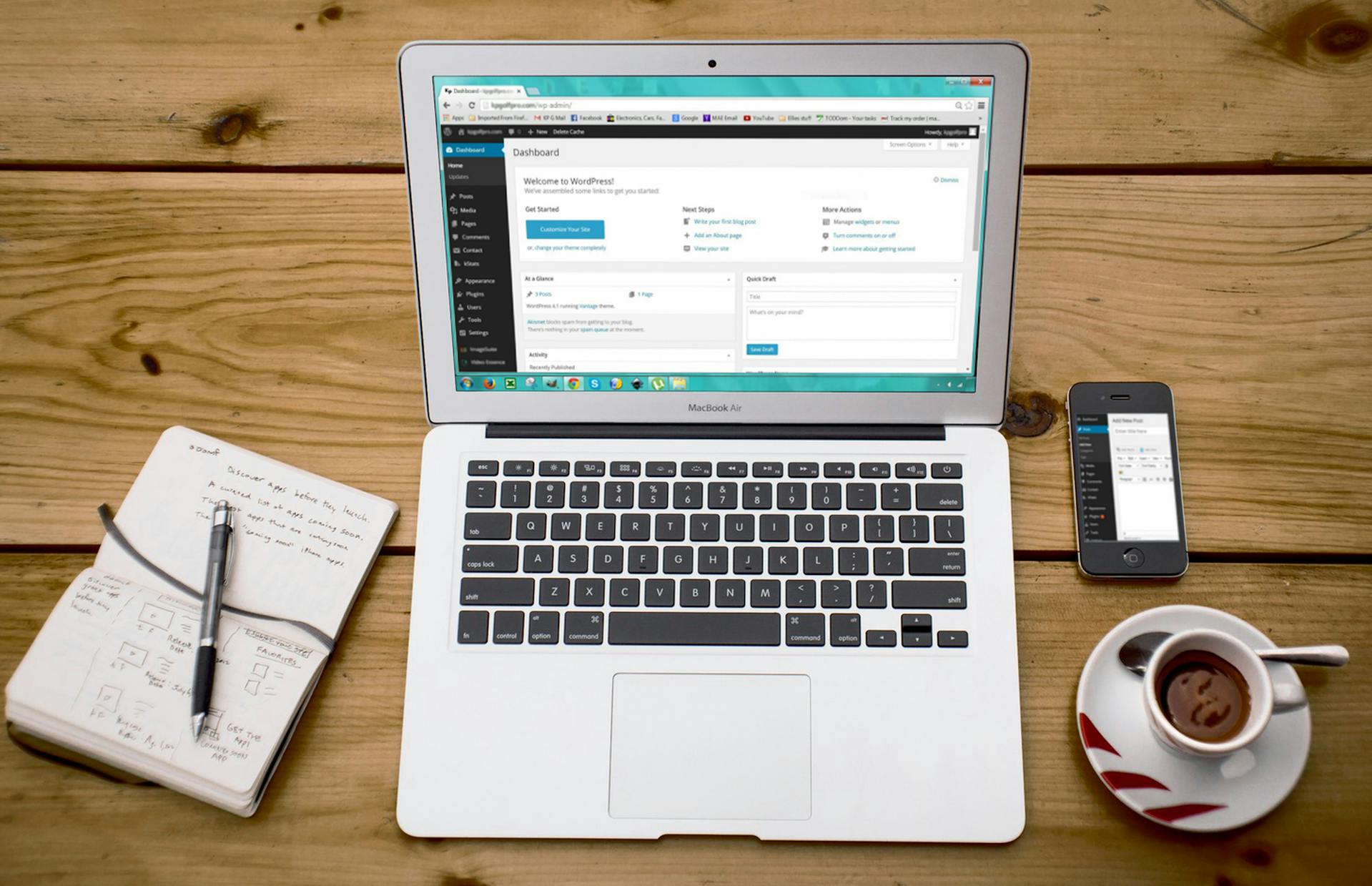
Plugins can make your site powerful, but they can also slow it down if not managed properly.
Poorly optimized plugins increase load times, create a frustrating user experience, and hurt your rankings on search engines.
Visitors leave faster, pages feel sluggish, and conversions drop without you even noticing why.
This checklist shows you exactly how to fix that. You’ll learn how to identify problem plugins, reduce unnecessary load, and keep your site fast, clean, and efficient.
You can check plugin impact on load time to identify performance issues early.
1. Audit Your Current Plugins
Start by listing every active plugin on your site so you have a clear view of what is running and affecting performance; this helps you spot issues quickly instead of guessing.
Next, review each plugin one by one and ask what it actually does.
If you find plugins that you no longer use, forgot about, or that duplicate the same function as another plugin, mark them for removal because they add unnecessary load and slow down your site.
Pay close attention to overlapping features, such as multiple SEO, security, or caching plugins, since these often create redundancy and conflicts.
Finally, delete all inactive plugins instead of leaving them deactivated, because even inactive plugins can take up space, pose security risks, and clutter your dashboard, making your site harder to manage over time.
2. Check Plugin Necessity
Review each plugin with a simple question in mind: Does this plugin solve a real problem on your site, or is it just “nice to have”? If it doesn’t directly improve functionality, performance, or user experience, it likely doesn’t belong.
Many websites become slow because of large, multi-purpose plugins that include dozens of features you never use, so replace these with lightweight alternatives that focus only on the specific function you need.
This reduces unnecessary code and keeps your site faster and easier to manage.
Also, check for overlapping features across plugins, such as multiple tools handling SEO, caching, or security, because this creates duplication, increases load time, and can even cause conflicts.
Keep only one plugin per function wherever possible, and make sure every plugin on your site has a clear, justified purpose.
3. Test Plugin Performance Impact
Once you’ve reviewed your plugins, the next step is to measure how each one affects your site speed so you can make decisions based on real data, not guesswork.
Start by using tools like Query Monitor to see what’s happening inside your site, and tools like GTmetrix or PageSpeed Insights to check how your pages load from a user’s perspective.
These tools highlight slow scripts, long load times, and performance bottlenecks.
As you review the results, look for plugins that load large files, trigger many database requests, or appear in performance warnings, since these are often the main causes of slowdowns.
To confirm the impact, disable one plugin at a time and run the same speed test again, comparing the results before and after each change.
This step-by-step testing helps you clearly identify which plugins are hurting performance and which ones are safe to keep, allowing you to optimize your site without breaking important functionality.
4. Keep Plugins Updated
Keeping your plugins updated is one of the simplest ways to maintain a fast and stable website, yet it is often overlooked.
Developers regularly release updates to fix bugs, improve performance, and close security gaps, so running outdated plugins means you miss out on these improvements and leave your site exposed to unnecessary risks.
Updated plugins often load more efficiently, use better code, and work smoothly with the latest version of WordPress, which helps reduce errors and slowdowns.
On the other hand, outdated plugins can break your site, cause conflicts with other tools, and create security vulnerabilities that attackers can exploit.
Make it a habit to check for updates regularly, apply them carefully, and test your site after updating to ensure everything still works as expected.
5. Use Lightweight Plugins
Choosing the right plugins has a direct impact on your site speed, so focus on lightweight, performance-driven options that do one job well without adding unnecessary code.
Start by selecting plugins that are built with speed in mind, often described as minimal, modular, or optimized, since these load fewer scripts and place less strain on your server.
Avoid bloated all-in-one plugins that promise to handle everything, because they usually include many features you won’t use, which increases load times and complexity.
Instead, use smaller plugins that target specific needs, giving you better control over what runs on your site.
Before installing anything, check user reviews, update history, and performance benchmarks where available to see how the plugin behaves in real-world use.
This helps you avoid slow or poorly maintained tools and ensures you only add plugins that support a fast, stable website.
6. Limit Plugin Load on Pages
Not every plugin needs to run on every page, and loading them everywhere wastes resources and slows your site down.
Start by identifying where each plugin is actually needed—for example, a contact form plugin only needs to load on your contact page, not across your entire website.
Next, use tools like Asset CleanUp or Perfmatters to control where plugin scripts and styles are loaded, allowing you to disable them on pages where they serve no purpose.
This reduces unnecessary requests, cuts down page size, and improves load times without removing the plugin itself.
Go through your key pages one by one, disable unused assets, and test to make sure everything still works correctly.
By limiting plugin load to only where it’s needed, you keep your site lean, faster, and more efficient without sacrificing functionality.
7. Optimize Plugin Settings
Most plugins come with default settings that are not optimized for performance, so taking a few minutes to configure them properly can make a noticeable difference.
Start by reviewing each plugin’s settings and turning off any features or modules you are not actively using, because every extra feature can add scripts, increase load time, or create background processes.
Next, look for options that control how often the plugin interacts with your database, such as logging, tracking, or automatic scans, and reduce these where possible to limit unnecessary database queries that can slow down your site.
Many plugins also include built-in caching or performance options, so make sure these are enabled and set correctly to avoid duplicate work and improve efficiency.
After making changes, test your site to confirm everything still works as expected.
Small adjustments in plugin settings can lead to faster load times and a smoother overall experience.
8. Manage Database Load
Your database stores everything your site needs to run, but plugins often leave behind extra data that builds up over time and slows things down.
Start by cleaning up plugin-created data such as transients, logs, and post revisions, since these can grow quickly and increase the time it takes for your site to fetch information.
Next, check for leftover data from plugins you have already deleted, as many plugins do not fully remove their data when uninstalled, leaving unnecessary clutter in your database.
Removing this unused data helps reduce the database size and improves overall performance.
To make this process easier and safer, use a trusted database optimization tool that can scan, clean, and optimize your database in just a few clicks.
Always take a backup before making changes, then run regular cleanups to keep your database fast, organized, and efficient.
9. Monitor Frontend Assets (CSS & JS)
Frontend assets like CSS and JavaScript files play a big role in how fast your site loads, and many plugins add their own files that can quickly stack up and slow things down.
Start by identifying heavy scripts and styles using performance tools, focusing on files that are large, load slowly, or appear as render-blocking resources.
Once you know what’s causing delays, minify and combine files where possible to reduce file size and the number of requests your site makes, which helps pages load faster.
You should also defer or delay non-critical JavaScript so it doesn’t block the initial page load, allowing important content to appear quickly while less important scripts load in the background.
Test your site after each change to ensure everything still works correctly, and aim to keep only the assets that are truly necessary for each page.
10. Check for Plugin Conflicts
Plugin conflicts can quietly slow down your site or break features, so it’s important to identify them early before they cause bigger issues.
Start by watching for signs like sudden slowdowns, errors, or features not working as expected, since these often point to plugins interfering with each other.
To find the exact cause, test plugins individually by deactivating them one at a time and checking your site’s performance and functionality after each step.
This method helps you pinpoint which plugin or combination is creating the problem.
For safer testing, use a staging environment instead of your live site so you can troubleshoot without affecting visitors or risking downtime.
Once you identify the conflict, you can replace, update, or remove the problematic plugin to restore stability and improve performance.
11. Use Caching & Performance Plugins Wisely
Caching and performance plugins can greatly speed up your site, but using them incorrectly can have the opposite effect.
Start by making sure you only use one caching plugin at a time, because running multiple caching tools together can create conflicts, duplicate processes, and unpredictable results.
Once you’ve chosen a reliable plugin, take the time to configure it properly by enabling key features like page caching, browser caching, and file optimization, while avoiding settings you don’t fully understand until you test them.
Poor configuration can lead to broken layouts or outdated content being shown to users.
To go a step further, combine your caching setup with a Content Delivery Network (CDN), which helps deliver your site’s files from servers closer to your visitors, reducing load times and improving global performance.
Always test your site after making changes to ensure everything loads correctly and performs as expected.
12. Monitor Site Speed Regularly
Optimizing your plugins is not a one-time task, so you need to monitor your site speed regularly to catch issues before they grow.
Start by scheduling consistent performance checks using tools like PageSpeed Insights or GTmetrix, whether that’s weekly or monthly, depending on how often your site changes.
During each check, focus on key metrics like Core Web Vitals, which measure real user experience, including loading speed, interactivity, and visual stability; these scores give you a clear picture of how your site performs in the real world.
To stay on track, set simple benchmarks and goals, such as target load times or performance scores, so you know what “good” looks like and can quickly spot when something drops.
By monitoring consistently, you can identify new slowdowns early, take action faster, and maintain a fast, reliable website over time.
13. Use a Staging Site for Testing
A staging site lets you test changes without risking your live website, making it an essential step for safe plugin optimization.
Before installing any new plugin, use your staging environment to check how it affects your site’s speed, layout, and functionality so you don’t introduce problems to real users.
This allows you to compare performance impact clearly by running speed tests before and after adding the plugin, helping you decide whether it’s worth keeping.
If something breaks or slows your site down, you can simply remove or adjust the plugin in staging without any consequences.
Once everything works correctly and performance looks good, you can confidently apply the same changes to your live site, knowing exactly what to expect.
14. Remove Plugin Bloat Over Time
Plugin optimization is an ongoing process, so make it a habit to review your plugin stack regularly instead of setting it once and forgetting it.
Over time, your site may collect extra plugins as your needs change, so revisit your list and remove anything that is no longer essential or actively used.
If you notice a plugin slowing down your site or offering more features than you need, look for a lighter alternative that delivers the same result with less impact on performance.
Replacing heavy plugins with more efficient options helps reduce load time and keeps your site easier to manage.
The goal is to keep your setup lean, focused, and purposeful, where every plugin has a clear role and contributes to a fast, smooth user experience.
Quick Plugin Optimization Checklist (Summary)
- Remove unused plugins
- Update plugins regularly
- Use lightweight alternatives
- Disable unused scripts and styles
- Optimize plugin settings
- Clean and optimize your database
- Monitor performance consistently
Final Thoughts
Plugin performance is about quality, not quantity, so focus on using only what your site truly needs.
Small changes like removing unused plugins, adjusting settings, and limiting load can lead to noticeable speed improvements.
Review your plugins regularly, stay consistent with maintenance, and your site will remain fast, stable, and easy to manage over time.
Always learn how to manage plugin performance before scaling your website.
FAQs
How many plugins are too many?
There’s no fixed number—what matters is quality. A few heavy plugins can slow your site more than many lightweight ones.
Do plugins always slow down a website?
No. Well-coded plugins have minimal impact, but poorly optimized ones can cause major slowdowns.
What’s the fastest type of plugin?
Lightweight, single-purpose plugins that load only what’s needed are usually the fastest.
Can one plugin affect the entire site speed?
Yes. A single poorly coded plugin can slow down your whole site.
How often should I optimize plugins?
Review and optimize your plugins regularly, especially after adding new ones or updating your site.





Hi, I’m Daniel Cacheton. I specialize in WordPress performance optimization and have spent 7+ years improving site speed, Core Web Vitals, and overall user experience. I share practical, no-fluff guides based on real testing to help you build faster WordPress websites.









