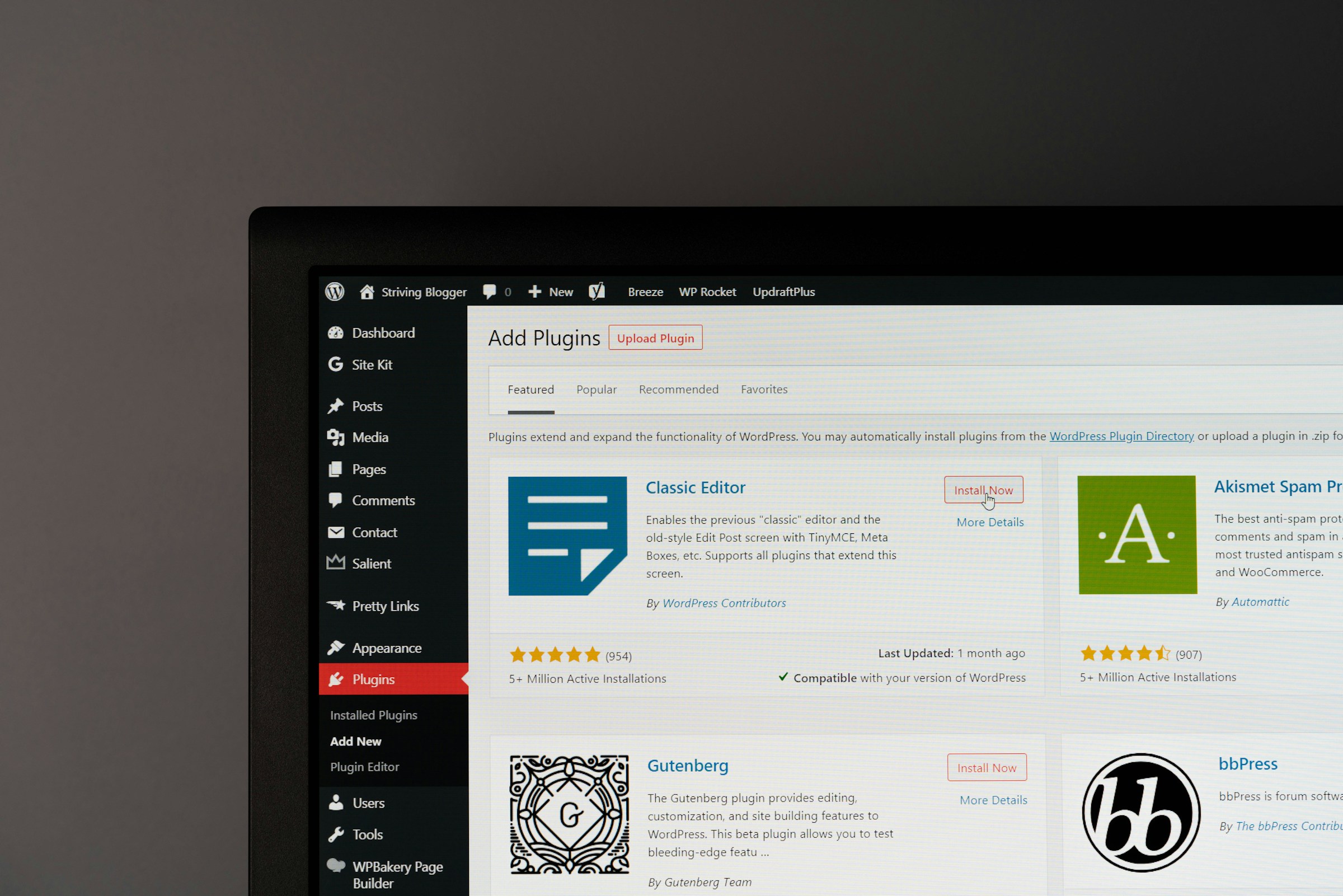
WordPress plugins make it easy to add new features to your website.
With a few clicks, you can install tools for SEO, security, forms, backups, and much more. Plugins are one of the biggest reasons WordPress is so flexible and powerful.
But plugins can also slow your website down.
Many slow WordPress sites are not caused by hosting or themes.
The real problem is often plugins. Poorly coded plugins, heavy features, and plugins that load unnecessary scripts can increase load times and use more server resources.
Even a few inefficient plugins can make a noticeable difference in performance.
This doesn’t mean plugins are bad. It means they need to be managed carefully.
In this guide, you will learn exactly how plugins affect WordPress performance and why some plugins slow websites down more than others.
You will also learn how to identify slow plugins, test plugin performance, and optimize the plugins you use.
We will also cover practical ways to reduce plugin impact, remove unnecessary scripts, and keep your site running efficiently.
To understand the full process of speeding up your website, see our comprehensive WordPress performance optimization guide.
Why Plugins Affect WordPress Performance (Core Concept)
What WordPress Plugins Actually Do
A WordPress plugin is simply a piece of software that extends what WordPress can do.
Instead of building features manually, plugins allow you to add tools such as contact forms, SEO features, security tools, backups, and page builders with just a few clicks.
This convenience is what makes WordPress powerful.
However, every plugin works by running its own code inside WordPress.
When a visitor opens a page on your site, WordPress loads its core files, your theme, and every active plugin. Each plugin can then perform different tasks during the page request.
For example, a plugin might:
- load settings from the database
- Check permissions or security rules
- Add scripts or styles to the page
- Modify how content is displayed
- connect to external services
All of this happens automatically in the background.
Even simple plugins run code when WordPress loads. More complex plugins run multiple processes, which increases the workload for the server.
Plugins Run Code on Every Request
One important detail many site owners overlook is that plugins often run code on every page request.
When someone visits your website, WordPress goes through a process that builds the page dynamically.
During this process, active plugins are loaded, and their functions are executed.
This means the plugin does not only run when its feature is used. It may run every time a page loads.
For example, a contact form plugin may only appear on the contact page.
However, the plugin might still load scripts, check settings, or run background functions on every page of the website.
Multiply this behavior across many plugins, and the workload grows quickly.
This is one of the main reasons poorly optimized plugins can slow down WordPress sites.
Plugins Interact With the Database
Most plugins store settings, logs, or other data inside the WordPress database.
Whenever a plugin needs information, it sends a query to the database. WordPress retrieves the requested data and returns it to the plugin so it can continue processing.
Each of these requests takes time.
A well-built plugin keeps database queries small and efficient. A poorly designed plugin may run many unnecessary queries or retrieve large amounts of data.
For example:
- Analytics plugins may log visitor activity
- Security plugins may store scan results
- Backup plugins may track file changes
- Page builders may store complex layout data
Over time, this data can grow large and slow down database performance.
If several plugins are making frequent database queries during every page load, your server must work much harder to generate each page.
Plugins Load Scripts and Styles
Another common performance impact comes from frontend assets.
Many plugins add their own CSS and JavaScript files to the website. These files control how plugin features appear and behave in the browser.
For example:
- form plugins load scripts for validation
- slider plugins load JavaScript for animations
- Page builders load large styling files
- analytics tools load tracking scripts
Each of these files must be downloaded by the visitor’s browser before the page fully loads.
The more files your site loads, the more requests the browser must make. This increases page load time and can delay when the page becomes interactive.
Some plugins also load their scripts on every page, even if the feature is only used in one place. This unnecessary loading is a major cause of slow websites.
The Three Main Performance Costs of Plugins
Most plugin performance problems fall into three main categories.
1. Extra PHP Execution
Plugins run PHP code on the server. Each time a page loads, this code must be processed before the page is delivered to the visitor.
The more complex the plugin, the more processing power it requires.
Heavy plugins, especially page builders or all-in-one plugins, can significantly increase server processing time.
2. Additional Database Queries
Many plugins rely heavily on the database.
If a plugin performs multiple database queries during a page request, it can slow down the entire page generation process.
Poorly optimized queries or large datasets can make this problem worse.
3. Extra CSS and JavaScript Files
Plugins often add frontend files that must load in the browser.
More files mean more HTTP requests, larger page sizes, and longer loading times.
This can directly affect important performance metrics like page load time and Core Web Vitals.
Plugin Quality Matters More Than Plugin Quantity
A common myth is that having too many plugins automatically slows down WordPress.
In reality, the number of plugins is not the main problem. The quality of the plugins matters far more.
A website with 30 well-coded plugins can run faster than a website with five poorly built plugins.
For example, a lightweight SEO plugin may add very little overhead.
In contrast, a poorly optimized analytics plugin could add multiple scripts, heavy database queries, and background tasks that slow the site significantly.
Similarly, a simple caching plugin may improve performance, while a bloated page builder addon could add hundreds of extra CSS rules and scripts.
The real goal is not to use fewer plugins. The goal is to use efficient plugins that do their job without adding unnecessary load.
How Plugins Increase Page Load Time
Plugins do not slow a website down in just one way. Their impact happens across several parts of the WordPress loading process.
Each plugin adds tasks that the server, database, and browser must complete before a page fully loads.
Server Processing Time
When someone visits a page on your website, the server must build that page before sending it to the visitor’s browser.
This process happens on the server using PHP, which is the programming language that powers WordPress.
Plugins increase the amount of PHP code that must run during this process.
Every active plugin loads its files and executes certain functions when WordPress runs.
Some plugins perform small tasks, such as loading a setting or checking whether a feature is enabled.
Others run complex processes, such as generating layouts, scanning files, or connecting to external services.
The more work the server must do, the longer it takes to generate the page.
This delay directly affects a metric called Time To First Byte (TTFB).
TTFB measures how long it takes for the server to send the first piece of data back to the visitor after a request is made.
If plugins add heavy processing tasks, the server takes longer to respond. As a result, TTFB increases, and the page begins loading more slowly.
For example, a large page builder plugin may process layout data before generating the final HTML of the page.
A security plugin might check multiple rules and filters before allowing the page request to continue.
When several plugins perform these actions together, server processing time grows quickly.
Database Queries
Most WordPress plugins store and retrieve information from the database. This includes settings, logs, user data, and plugin-specific content.
Whenever a plugin needs information, it sends a request to the database called a query. The database processes the request and returns the required data.
Each query adds a small amount of time to the page generation process.
Well-designed plugins keep database queries efficient. They retrieve only the data they need and limit how often they request it.
Poorly optimized plugins often do the opposite. They may run many queries during every page load or retrieve large amounts of unnecessary data.
For example:
- Analytics plugins may record visitor activity in the database
- Security plugins may log firewall events or login attempts
- Page builders may load complex layout data
- Form plugins may retrieve stored form entries
If multiple plugins run queries at the same time, the database must process them all before the page can finish loading.
This becomes even slower if the queries themselves are inefficient.
Large database tables, unoptimized queries, or excessive logging can all increase the time required to generate each page.
Over time, this additional database workload can noticeably slow down a WordPress site.
Frontend Assets
Once the server finishes generating a page, the visitor’s browser must download the files required to display it. Plugins often add their own files to this process.
These files typically include CSS and JavaScript.
CSS files control how elements appear on the page. They define styles such as layouts, fonts, colors, and spacing.
JavaScript files control interactive features such as sliders, animations, form validation, popups, and dynamic content.
Many plugins load these files automatically.
For example:
- form plugins load validation scripts
- slider plugins load animation scripts
- Page builders load large style libraries
- marketing plugins load tracking scripts
Each file added by a plugin creates an additional request that the browser must download.
The more files a page loads, the longer the browser needs to finish rendering the page.
Some plugins also load third-party resources from external servers. Common examples include:
- tracking scripts
- analytics tools
- marketing platforms
- font libraries
External resources can introduce additional delays because the browser must connect to other servers before those files can load.
If several plugins add scripts, styles, and external resources at the same time, page load time increases quickly.
Background Processes
Not all plugin activity happens during page loads. Many plugins also run background tasks that operate behind the scenes.
These tasks are usually scheduled through WordPress’s built-in cron system. They may run periodically to perform maintenance or collect data.
Common examples include:
- analytics plugins processing visitor data
- security plugins running malware scans
- Backup plugins are creating scheduled backups
- SEO plugins generating sitemaps
- Monitoring tools checking site uptime
These processes consume server resources while they run.
Although they may not always affect a single page request directly, they still place additional load on the server.
If several heavy tasks run at the same time, the server may become slower overall.
For example, a scheduled backup running during peak traffic hours can increase server usage and slow page response times.
Security scans and analytics processing can have a similar effect.
The Cumulative Effect
The real performance impact of plugins comes from how these factors combine.
One plugin may add a few database queries. Another may load multiple scripts. A third may run background processes. Individually, these changes may seem small.
But when dozens of plugins add their own tasks, the total workload increases significantly.
The server must process more code, the database must handle more queries, and the browser must download more files.
How Many Plugins Are Too Many in WordPress?
One of the most common questions WordPress users ask is how many plugins are too many, but the truth is that the number itself is not the real problem.
What actually matters is how well the plugins are built and how efficiently they run.
A site can perform very well with 30 or even 40 lightweight plugins if they are properly coded and optimized.
On the other hand, a website with only five poorly built plugins can still be slow. The key factor is plugin quality.
Well-coded plugins are designed to run efficiently, limit database queries, and load scripts only when necessary.
They perform their tasks without adding unnecessary processing work for the server. Bloated plugins are very different.
They often include many features that load even when they are not being used, which increases server processing time, database activity, and frontend file sizes.
For example, an all-in-one plugin that includes analytics, marketing tools, tracking scripts, popups, and styling libraries may load multiple scripts and database queries on every page request.
This type of plugin creates far more overhead than several smaller plugins that each perform one task efficiently. Server resources also play an important role.
Every plugin uses CPU, memory, and database resources when WordPress generates a page.
If your hosting environment has limited resources, even moderately heavy plugins can begin to affect performance.
This is why two websites using the same plugins can have different performance results depending on the server they run on.
Another common issue is plugin overlap. This happens when multiple plugins perform similar functions.
For example, you might install one plugin for redirects, another for SEO, and a third for performance optimization, even though your SEO plugin already includes redirect management.
Running overlapping plugins increases code execution and database queries without adding real value.
The goal is not simply to reduce the plugin count. The goal is to build a lean plugin stack where each plugin serves a clear purpose and runs efficiently.
If you want a deeper breakdown of plugin limits, performance factors, and real-world recommendations, see this guide: How Many Plugins Are Too Many in WordPress.
How to Identify Plugins That Slow Down WordPress
Before you can optimize plugin performance, you first need to identify which plugins are causing the slowdown.
Many website owners assume their hosting or theme is the problem, but in reality, poorly optimized plugins are often the biggest performance bottleneck.
The key is learning how to recognize the warning signs and knowing which types of plugins are most likely to cause performance issues.
Common Warning Signs
Slow plugins usually leave clear clues. If you notice any of the following issues, one or more plugins may be responsible.
Slow Admin Dashboard
A slow WordPress dashboard is one of the first signs of plugin performance problems.
If pages in the admin area take several seconds to load, plugins may be running heavy processes in the background.
Some plugins load scripts, run database queries, or perform checks every time the dashboard loads.
Analytics plugins, security tools, and page builders are common causes of slow admin panels.
Increased Page Load Times
If your website suddenly becomes slower after installing a plugin, that plugin may be adding extra processing work.
This slowdown often appears as:
- longer page load times
- delayed page rendering
- slower response from the server
Heavy plugins can add large scripts, additional database queries, or complex processing that increases the time needed to generate each page.
High Server Usage
Plugins that run complex operations can increase server resource usage. This includes higher CPU usage, memory consumption, and longer server response times.
Some plugins perform continuous tasks such as scanning files, processing analytics data, or generating reports.
If these processes run frequently, they can consume large amounts of server resources.
When server usage increases, the entire site may become slower.
Slow Database Queries
Many performance problems originate in the database. Plugins often store settings, logs, and other data that must be retrieved whenever a page loads.
If a plugin performs too many queries or runs inefficient queries, it can slow down the entire page generation process.
Signs of database-related plugin issues include:
- slow page generation
- large database tables
- frequent database activity during page loads
Plugins that store large amounts of data, such as analytics or logging plugins, are often responsible for this type of slowdown.
Typical Performance Culprits
While any plugin can potentially cause performance problems, some types of plugins are more likely to affect site speed because of how they operate.
Page Builders
Page builders often add significant overhead because they generate complex layouts and styling.
They may load large CSS libraries, JavaScript files, and layout processing code on every page. When combined with additional addons, this overhead can increase dramatically.
Some addon packs for page builders introduce hundreds of extra design features, many of which load even when they are not used.
If you use Elementor with multiple addon plugins, performance issues can become more noticeable.
→ Why Elementor Addons Hurt Performance
Analytics Plugins
Analytics plugins track visitor activity and often store this information in your WordPress database.
Some analytics plugins log page views, user behavior, and traffic data in real time. This creates frequent database queries and background processing tasks.
Over time, this data collection can slow both the database and the website.
Backup Plugins
Backup plugins are essential for protecting your site, but they can also consume significant server resources.
Creating backups requires reading large amounts of data from your server and compressing it into archive files.
If backups run frequently or during peak traffic hours, they can affect performance.
Scheduling backups carefully helps reduce this impact.
Security Plugins
Security plugins protect your site by scanning files, monitoring activity, and blocking malicious traffic.
However, these tasks often require continuous monitoring and frequent background processes.
File integrity checks, malware scans, and firewall rules can all add extra server load if not configured carefully.
Contact Form Plugins
Contact form plugins are usually lightweight, but some load scripts and styles on every page of the site, even when no form is present.
This unnecessary loading increases the number of files that the browser must download.
Plugins that include advanced features such as spam filtering, analytics tracking, or external integrations may add additional processing work.
→ Why Contact Form Plugins Slow Down WordPress
The Next Step: Testing Plugins
Recognizing the warning signs is only the first step. To confirm which plugin is causing the slowdown, you need to test plugin performance directly.
This usually involves monitoring site speed, testing plugins individually, and identifying which plugin adds the most overhead.
For a complete step-by-step process, see this guide:
→ How to Find Plugins That Slow Down WordPress
Once you know which plugins are affecting performance, you can begin optimizing them or replacing them with more efficient alternatives.
How to Test Plugin Performance
Identifying slow plugins requires proper testing. Without testing, it is difficult to know which plugin is actually affecting your website’s performance.
Many performance issues look similar on the surface, but the underlying cause may be very different.
Testing plugins helps you isolate the problem, measure the impact of each plugin, and make informed decisions about optimization.
Instead of guessing, you can rely on real data to see which plugins increase load times, add excessive requests, or create heavy database activity.
Plugin Performance Testing Methods
There are several practical ways to test plugin performance. Each method helps reveal different types of issues.
Plugin Conflict Testing
Plugin conflicts occur when two plugins interact in a way that causes performance problems. Sometimes, both plugins work well individually but create issues when they run together.
To test for conflicts, temporarily deactivate all plugins except the ones required for the site to function. Then reactivate plugins one at a time while monitoring performance.
This process helps identify combinations of plugins that create unnecessary load. If performance drops after activating a specific plugin, that plugin may be causing the issue.
Conflict testing is especially useful when performance problems appear suddenly after installing a new plugin.
Staging Environment Testing
Testing plugins directly on a live website can be risky. Deactivating plugins may break features or affect visitors.
A staging environment solves this problem.
A staging site is a copy of your live website that allows you to safely test changes without affecting users. Many hosting providers offer one-click staging environments.
On the staging site, you can:
- Disable plugins safely
- test plugin alternatives
- measure performance differences
- Experiment with optimization settings
This controlled environment makes it easier to diagnose plugin issues without disrupting your live site.
Plugin-by-Plugin Testing
One of the most reliable ways to find slow plugins is to test them individually.
Start by measuring your site’s performance with all plugins active. Record the results. Then deactivate one plugin and test the site again.
If performance improves noticeably after disabling a plugin, that plugin is likely contributing to the slowdown.
Repeat this process for each plugin. Although it takes time, it provides a clear picture of which plugins create the largest performance impact.
This method works especially well for identifying heavy plugins such as page builders, analytics tools, or complex marketing plugins.
Performance Tools
Testing plugins becomes much easier when you use performance analysis tools. These tools provide detailed data about how your site loads and where delays occur.
Several tools are commonly used for WordPress performance testing.
Query Monitor is a WordPress plugin that shows detailed information about database queries, PHP errors, scripts, and hooks.
It helps identify which plugins are generating large numbers of database queries or running inefficient code.
GTmetrix analyzes page load performance and provides detailed reports on page size, loading time, and resource requests.
It also highlights large scripts and stylesheets that may be added by plugins.
PageSpeed Insights evaluates website performance based on real user metrics and best practices. It identifies issues such as render-blocking scripts and excessive JavaScript.
WebPageTest provides advanced performance testing and detailed waterfall charts. These charts show exactly which files load on your site and how long each request takes.
Using multiple tools gives a more complete understanding of plugin impact.
Metrics to Monitor
When testing plugin performance, focus on a few key metrics. These indicators reveal how much overhead a plugin adds.
Load Time shows how long a page takes to fully load. If load time increases after installing a plugin, that plugin may be adding extra processing work or additional files.
Requests represent the number of files that the browser must download.
Plugins that load many scripts or stylesheets increase the number of requests, which can slow down page rendering.
Database Queries show how often plugins interact with the database during page generation. A high number of queries can significantly slow down server response times.
Monitoring these metrics helps you understand exactly how each plugin affects your website.
Continue Diagnosing Slow Plugins
Testing provides the data needed to identify slow plugins and optimize your site effectively.
Once you understand which plugins add the most overhead, you can begin replacing them, adjusting their settings, or reducing their impact.
For detailed step-by-step testing instructions, see these guides:
→ How to Test Plugin Performance
→ How to Find Slow Plugins in WordPress
These guides explain how to diagnose plugin-related slowdowns and identify the plugins that have the biggest effect on your WordPress performance.
How Plugins Load Scripts and Styles
One of the most common reasons plugins slow down WordPress is how they load their scripts and styles.
Many plugins add CSS and JavaScript files to your website, but they often load these files on every page, even when the feature is only used in one place.
This behavior creates unnecessary work for the browser and increases page load time.
Global Script Loading
Many plugins load their scripts and styles globally. This means the files are added to every page of your website, regardless of whether the plugin feature is actually used on that page.
From a developer’s perspective, this approach is easier because it ensures the plugin always works. However, it also means unnecessary files are loaded on pages that do not need them.
Consider a simple example.
A contact form plugin may only be used on your Contact page. However, the plugin might still load its JavaScript validation scripts and CSS styling files on every page of the site.
As a result, visitors loading your homepage, blog posts, or product pages still download these files even though the form is not present.
This creates extra HTTP requests and increases the amount of data that must be downloaded.
The same issue often occurs with:
- slider plugins
- popup plugins
- page builder widgets
- marketing or tracking plugins
If several plugins load their assets globally, the number of unnecessary files grows quickly.
CSS and JavaScript Bloat
Another problem occurs when plugins add large CSS and JavaScript libraries to the website.
These files may include styling and scripts for dozens of features, even if only one feature is actually used.
This creates CSS and JavaScript bloat.
For example, a page builder addon might include styling for multiple widgets such as sliders, galleries, forms, animations, and buttons.
Even if your page only uses a simple text block, the entire stylesheet may still load.
Large JavaScript files can cause even bigger issues.
Many scripts must load before the browser can fully render the page.
These are known as render-blocking resources because they delay the moment when the page becomes visible and interactive.
When multiple plugins load large scripts and stylesheets, the browser must download and process all of them before completing the page load.
This increases:
- total page size
- number of requests
- render time
The result is slower pages and a worse user experience.
How Selective Script Loading Helps
A more efficient approach is selective script loading. This means plugin scripts and styles only load on pages where they are actually needed.
For example:
- Contact form scripts load only on the contact page
- Slider scripts load only on pages that contain sliders
- popup scripts load only on pages where popups appear
By limiting where these files load, you reduce unnecessary requests and improve page speed.
Selective loading works because it removes unused assets from most pages of your site. Visitors only download the files required for the features they are using.
This leads to:
- smaller page sizes
- fewer HTTP requests
- faster rendering times
Several performance optimization plugins allow you to disable scripts on specific pages. Some plugins also provide built-in settings to load assets only when their features are used.
If a plugin does not offer this option, you can still manage scripts manually through performance tools or code-based solutions.
Learning how to control plugin assets is one of the most effective ways to reduce plugin-related performance issues.
For step-by-step guidance, see these detailed guides:
→ How to Disable Plugin Scripts on Specific Pages
→ How to Remove Unused Plugin Scripts
These techniques help ensure that your website only loads the files it actually needs, which keeps your pages lean and significantly improves overall performance.
Plugin Database Impact
Plugins do more than add features to your website. Many of them also store large amounts of data in the WordPress database.
Over time, this data can grow significantly and affect how quickly your website generates pages.
When the database becomes overloaded with unnecessary or poorly organized data, queries take longer to complete.
This delay directly affects page generation time and overall site performance.
Plugin Database Tables
Many WordPress plugins create their own custom database tables when they are installed. These tables store plugin-specific information that WordPress core does not manage.
For example, plugins may create tables to store:
- form submissions
- analytics data
- security logs
- SEO metadata
- plugin settings
- backup information
Custom tables allow plugins to manage their data efficiently, but they can also grow very large if the plugin stores a lot of information.
Large database tables slow down queries because the database must search through more data to retrieve the requested information.
Even simple queries can take longer when tables contain thousands or millions of rows.
Some plugins are designed to limit the size of their tables or automatically clean old data.
Others continue storing information indefinitely, which can lead to significant database growth over time.
If several plugins create large tables, the combined effect can noticeably slow down WordPress.
Orphaned Data
Another common issue is orphaned data.
Orphaned data refers to information that remains in the database after a plugin has been removed.
When a plugin is uninstalled, it does not always delete the tables and data it created.
As a result, the database may still contain:
- unused plugin tables
- leftover settings
- stored logs
- temporary records
Although this data no longer serves any purpose, it still occupies space in the database. Over time, multiple deleted plugins can leave behind a large amount of unused data.
This unnecessary data increases the database size and makes queries less efficient.
Cleaning up orphaned data helps keep the database lean and improves query performance.
Database Bloat
Database bloat occurs when plugins continuously store data that grows over time. Certain types of plugins are especially prone to this issue because they record ongoing activity.
Common examples include:
Logs
Security plugins often store logs for login attempts, firewall events, and malware scans. If these logs are not automatically cleared, they can accumulate quickly.
Analytics Data
Analytics plugins that track visitor activity may store page views, user behavior, and traffic information in the database. High-traffic websites can generate large amounts of analytics data.
Transients
Many plugins use temporary database entries called transients to store cached data. These entries are designed to expire automatically, but some plugins fail to remove them properly.
Expired transients can accumulate and increase the database size.
When logs, analytics data, and unused transients build up, the database becomes bloated.
A larger database requires more time to search and process queries, which slows down page generation.
Regular database maintenance helps prevent these problems.
For detailed guidance on cleaning and optimizing plugin-related database tables, see this guide:
→ How to Optimize Plugin Database Tables
Lightweight Plugin Alternatives
Not all plugins are created with performance in mind. Some plugins include large feature sets, complex code, and heavy scripts that significantly increase page load time.
These types of plugins are often described as bloated plugins.
Bloated plugins try to solve many problems at once.
While this can be convenient, it usually means the plugin loads features, scripts, and database processes that your site may not actually need.
Choosing lighter alternatives is one of the simplest ways to improve WordPress performance.
Examples of Heavy Plugins
Certain types of plugins are more likely to become heavy because of how many features they include.
Page Builders
Page builders give you visual control over your website layout, but they often add large amounts of CSS and JavaScript to every page.
These tools generate complex layouts and styling rules, which increase page size and processing time.
Page builder addon packs can make this even worse. Many addon plugins include dozens of widgets and design elements that load scripts and styles even when they are not used.
All-in-One Plugins
All-in-one plugins combine multiple features into a single plugin.
For example, one plugin might include SEO tools, schema markup, redirects, analytics integration, and performance settings.
While this seems convenient, the plugin may load code for all of these features even if you only use one or two of them.
This unnecessary overhead increases server processing time and page size.
Multi-Feature Plugins
Some plugins bundle many different functions together, such as popups, marketing tools, analytics tracking, and lead generation features.
These plugins often include multiple scripts, stylesheets, and database processes.
If several features run simultaneously, the plugin can become one of the heaviest components of your site.
Choosing Lightweight Alternatives
Instead of relying on large, feature-heavy plugins, it is often better to use smaller plugins that focus on doing one job well.
Modular Plugins
Modular plugins allow you to enable or disable individual features. This prevents unnecessary code from loading when certain features are not needed.
For example, some SEO plugins allow you to disable modules such as redirects, schema tools, or XML sitemaps if you already use another tool for those functions.
This flexibility helps reduce unnecessary processing.
Performance-Focused Plugins
Some developers build plugins specifically with performance in mind.
These plugins are designed to minimize database queries, load scripts only when required, and avoid unnecessary background tasks.
Performance-focused plugins typically include lightweight code and efficient asset loading practices.
Choosing plugins from developers who prioritize performance can make a noticeable difference in site speed.
→ 10 Best WordPress Performance Plugins
→ 15 WordPress Plugins To Skyrocket Your Website Performance
Minimal Feature Plugins
Another effective strategy is to use plugins that focus on a single task.
For example, instead of installing a large marketing plugin that includes popups, analytics, and lead tracking, you might install a small popup plugin that performs only that one function.
This approach keeps your plugin stack lean and reduces the total amount of code running on your website.
If you want practical recommendations and comparisons between heavy plugins and lighter alternatives, see this guide:
→ Lightweight Alternatives to Popular WordPress Plugins
Replacing bloated plugins with lighter options is one of the fastest ways to reduce plugin overhead and improve WordPress performance.
Plugin Optimization Best Practices
Managing plugins properly is one of the most effective ways to maintain a fast WordPress website.
Many performance issues appear gradually as new plugins are installed, features are added, and unused tools remain active over time.
Following simple plugin management practices helps prevent unnecessary overhead and keeps your website running efficiently.
Below are the key best practices every WordPress site owner should follow.
- Only Install Necessary Plugins
Install plugins only when they solve a clear problem or add an essential feature to your website. Every plugin adds code, database activity, and potential scripts that increase the workload on your server. - Regularly Audit Plugins
Review your installed plugins every few months to evaluate whether they are still needed, updated, and performing efficiently. Regular audits help identify outdated, redundant, or poorly optimized plugins. - Delete Unused Plugins
Deactivating a plugin is not enough because inactive plugins still occupy space and may leave database data behind. Removing plugins you no longer use keeps your site cleaner and reduces potential security and performance issues. - Avoid Feature Overlap
Installing multiple plugins that perform similar tasks increases unnecessary processing and database activity. For example, running several plugins for redirects, SEO features, or analytics can create duplicate functionality and extra overhead. - Update Plugins Regularly
Plugin updates often include performance improvements, bug fixes, and security patches. Keeping plugins updated ensures they run efficiently and remain compatible with the latest WordPress version. - Test Performance After Installing Plugins
Always test your website speed after installing a new plugin to see if it increases load time, adds additional requests, or creates heavy database queries. Identifying performance changes early makes it easier to replace problematic plugins.
These best practices help keep your plugin stack efficient and prevent unnecessary performance issues from building up over time.
For a complete step-by-step optimization process, see this guide:
→ Plugin Performance Optimization Checklist
Best Practices for Managing Plugin Performance
Keeping WordPress plugins optimized is not a one-time task.
Plugin performance must be managed continuously as your website grows, new features are added, and plugins receive updates.
Without regular maintenance, even well-optimized websites can gradually become slower over time.
Perform Plugin Audits Every Few Months
A regular plugin audit helps you review which plugins are still necessary and which ones may be affecting performance.
Over time, websites often accumulate plugins that are no longer needed.
During a plugin audit, review:
- whether each plugin is still actively used
- whether a plugin adds noticeable performance overhead
- whether newer, lighter alternatives are available
Removing unnecessary plugins reduces server workload and keeps your plugin stack lean.
Use Staging Environments for Testing
Testing plugin changes directly on a live website can create problems for visitors. A safer approach is to use a staging environment.
A staging site is a copy of your live site where you can safely test plugin updates, new plugins, or configuration changes.
This allows you to identify performance issues before they affect your live website.
Using staging environments helps prevent unexpected slowdowns or compatibility problems.
Monitor Site Performance Regularly
Website performance should be monitored consistently rather than only when problems appear.
Regularly testing your website helps you detect performance changes early.
Monitoring tools can reveal increases in page load time, additional scripts, or new database queries caused by plugin updates or installations.
When performance is tracked consistently, it becomes easier to identify the source of slowdowns.
Avoid Plugin Overload
It is easy for websites to accumulate too many plugins over time, especially when adding new features or experimenting with different tools.
Before installing a new plugin, ask whether the functionality already exists in another plugin or can be implemented in a simpler way.
Reducing unnecessary plugins helps keep the site lightweight and easier to manage.
Fewer plugins also mean fewer updates, fewer compatibility issues, and fewer potential performance problems.
Plugin Management Is Ongoing Maintenance
Plugin performance management is an ongoing process. As your website evolves, plugins will be installed, updated, replaced, or removed.
Regular audits, careful testing, and continuous performance monitoring ensure that plugins continue to support your website without slowing it down.
Treat plugin optimization as part of routine website maintenance, and your WordPress site will remain faster, more stable, and easier to manage over the long term.
Final Thoughts
Plugins are one of the biggest reasons WordPress is so flexible. They allow you to add powerful features without writing code.
But every plugin also adds extra processing, database activity, and scripts that can affect your site’s performance.
The real problem is not the number of plugins you install. The bigger issue is plugin quality and how efficiently those plugins are configured.
A few heavy or poorly optimized plugins can slow a site far more than many lightweight ones.
Keeping your website fast requires regular plugin management.
Test plugins when you install them. Monitor performance changes. If a plugin increases load time or adds unnecessary scripts, look for a lighter alternative.
Remove plugins that are no longer needed and avoid installing multiple plugins that perform the same task.
It is also important to control how plugins load their scripts and styles. Preventing unnecessary assets from loading across your site can significantly improve performance.
A clean, well-managed plugin stack keeps WordPress fast, stable, and easier to maintain.
For a step-by-step overview of improving site speed, read our WordPress website performance guide.





Hi, I’m Daniel Cacheton. I specialize in WordPress performance optimization and have spent 7+ years improving site speed, Core Web Vitals, and overall user experience. I share practical, no-fluff guides based on real testing to help you build faster WordPress websites.









