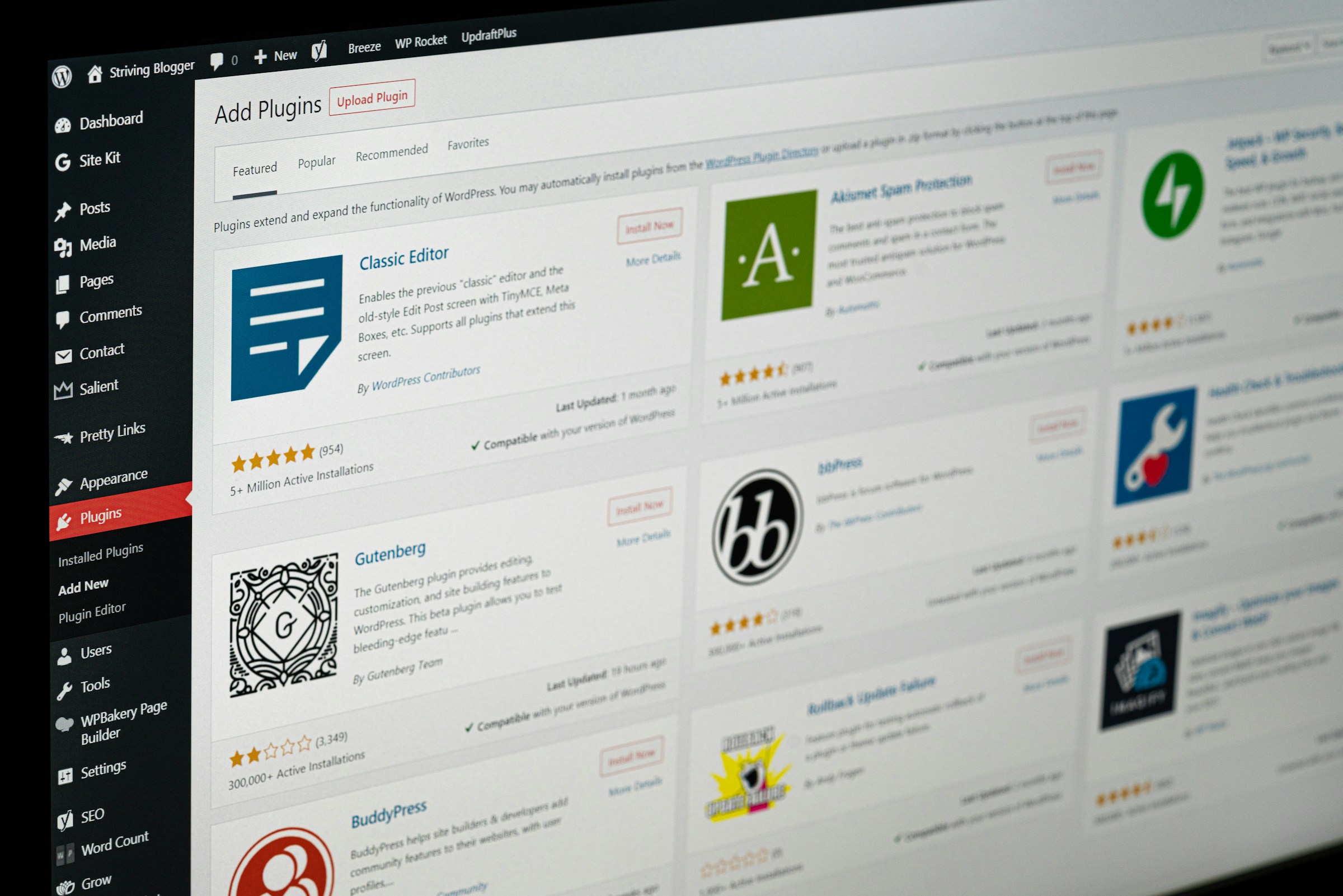
WordPress plugins are tools that add features to your website without needing code.
They can help you improve speed, boost SEO, add security, and build advanced functionality in minutes.
But there’s a catch. Install too many, and your site can slow down, break, or become harder to manage. This leads to a common question: how many plugins are too many?
No fixed number of plugins is “too many” in WordPress. Most sites run well with 5–20 quality plugins, but what matters is performance, not quantity. Even one poorly coded plugin can slow your site, while many well-built plugins can run smoothly.
In this guide, you’ll learn what actually matters more than the number of plugins, how to spot problems early, and how to keep your site fast, stable, and easy to maintain.
It’s important to see how to prevent plugin slowdowns before they happen.
Is There a Maximum Number of Plugins in WordPress?
WordPress does not set a fixed limit on how many plugins you can install, so technically, you can add as many as your site can handle, but that doesn’t mean you should.
What really matters is quality, not quantity. A single poorly coded plugin can slow down your entire site, while several well-built plugins can run smoothly without issues.
Good plugins are optimized, regularly updated, and designed to work efficiently, while bad ones may load unnecessary scripts, create database bloat, or conflict with other tools.
This is why the number alone doesn’t determine performance. A site with 10 heavy plugins can be slower than one with 30 lightweight ones.
Your hosting, theme, and how each plugin is built all play a role in speed and stability.
The goal is not to hit a specific number, but to choose reliable plugins that serve a clear purpose and avoid adding anything that doesn’t directly improve your site.
What Really Happens When You Install Too Many Plugins
Slower Website Performance
Each plugin adds code that your site has to load. Some load scripts, styles, and database queries on every page, even when they’re not needed.
This increases load time and can make your site feel sluggish to visitors. The more heavy or poorly optimized plugins you install, the more work your server has to do.
This leads to slower pages, higher bounce rates, and a worse user experience.
Increased Database Load
Many plugins store data in your database, such as settings, logs, and user activity. Over time, this builds up and makes your database larger and harder to process.
Some plugins also run frequent queries in the background, which can slow down your site further.
If not managed, this can lead to delays when loading pages, especially on shared hosting.
Plugin Conflicts and Errors
Not all plugins are built to work together. When multiple plugins try to control the same feature or load similar scripts, conflicts can happen.
This can break parts of your site, cause layout issues, or trigger error messages. In some cases, your site may crash completely.
These issues often appear after updates, making them harder to diagnose.
Security Vulnerabilities
Every plugin you install increases your site’s exposure to risk. If a plugin is outdated or poorly maintained, it can become an easy entry point for hackers.
Even one vulnerable plugin can compromise your entire website. The more plugins you have, the harder it becomes to monitor and secure them all properly.
More Maintenance and Updates
Each plugin requires regular updates to stay secure and compatible with WordPress.
The more plugins you install, the more time you spend managing updates and checking for issues.
Skipping updates can lead to security risks, while updating too many at once can cause conflicts.
This creates ongoing maintenance work that can quickly become overwhelming.
How Many Plugins Is Considered “Too Many”?
There isn’t a perfect number, but most well-optimized WordPress sites typically run between 5 and 20 plugins without issues, while larger sites can handle 20 to 50 or more if everything is properly managed.
A simple blog or business website usually needs fewer plugins because it has fewer features, so adding too many quickly leads to unnecessary load and complexity.
In contrast, eCommerce stores, membership sites, or learning platforms often rely on many plugins to handle payments, user accounts, subscriptions, and advanced features, so a higher plugin count is normal.
What matters is how each plugin is built and how it impacts your site.
Some sites run smoothly with many plugins because they use lightweight, well-coded tools, strong hosting, and avoid duplicate functionality.
Others struggle with far fewer plugins because they rely on heavy or poorly optimized ones. The key is to focus on purpose and performance.
If every plugin serves a clear role, runs efficiently, and doesn’t overlap with others, your site can handle more without problems.
Key Factors That Matter More Than Plugin Count
Plugin Quality
Not all plugins are built the same. Well-coded plugins are optimized, regularly updated, and designed to work smoothly with WordPress core and other tools.
They load only what is needed and avoid unnecessary database queries. Poorly coded plugins do the opposite.
They can load extra scripts on every page, create clutter in your database, and increase the risk of conflicts or crashes.
Before installing any plugin, check reviews, update history, and developer reputation. One high-quality plugin is always better than several weak ones.
Hosting Performance
Your hosting plays a major role in how many plugins your site can handle. Shared hosting has limited resources, so even a moderate number of plugins can slow your site down.
Managed or high-performance hosting provides better speed, caching, and server resources, allowing your site to run more plugins without issues.
If your site feels slow, the problem may not be the number of plugins but the limits of your hosting environment.
Plugin Functionality
Some plugins are lightweight and do one simple job. Others are large and handle multiple features, which can add more load to your site.
For example, a simple plugin that adds a small feature will have minimal impact, while a page builder or analytics plugin may use more resources.
Always consider what the plugin actually does. If it adds heavy functionality, make sure you truly need it.
Overlapping Features
Using multiple plugins that do the same job creates unnecessary load and increases the chance of conflicts.
For example, running two SEO plugins or multiple caching plugins can cause errors and slow performance.
Each plugin should have a clear purpose. If two plugins overlap, keep the better one and remove the rest to keep your setup clean and efficient.
External vs Internal Processing
Some plugins rely on external services, meaning most of the work is handled outside your server.
These are usually lighter on your site’s resources. Others process everything on your server, which can increase CPU usage and slow down performance.
For example, a plugin that connects to a cloud service may be more efficient than one that runs complex tasks locally.
Signs You Have Too Many Plugins Installed
Slow Loading Times
If your website takes longer to load than usual, your plugins may be the cause. Each plugin adds files and requests that need to load on every page.
When too many are active—especially heavy ones—your site slows down. This affects user experience and can hurt your search rankings.
Test your speed regularly, and if it keeps dropping after installing new plugins, that’s a clear warning sign.
Frequent Errors or Crashes
Random errors, broken pages, or even a completely white screen can point to plugin overload.
These issues often happen when plugins don’t work well together or when one plugin is poorly built.
If your site becomes unstable after adding or updating plugins, you likely have too many or the wrong combination installed.
Admin Dashboard Lag
Your WordPress dashboard should feel quick and responsive. If it becomes slow, takes time to load pages, or freezes while you work, plugins are often the reason.
Many plugins load scripts and data in the admin area, which can stack up and cause delays. This makes managing your site harder and less efficient.
Conflicts After Updates
Updates are necessary, but they can trigger problems when you have too many plugins.
One update can break compatibility with another plugin, leading to errors or missing features.
If your site frequently has issues right after updates, it’s a sign that your plugin setup is too complex and needs to be simplified.
High CPU or Memory Usage
If your hosting dashboard shows high CPU or memory usage, your plugins may be overloading your server.
Some plugins run background tasks or heavy processes that use a lot of resources. When too many of these are active, your site can slow down or even crash under traffic.
Monitoring resource usage helps you spot which plugins are causing the strain and take action quickly.
How to Reduce Plugin Bloat
Audit Your Plugins
Start by reviewing every plugin installed on your site.
Go through your list and ask one simple question: Does this plugin still serve a clear purpose? If a plugin is not actively improving your site, it doesn’t need to be there.
Check for duplicates, outdated tools, and features you no longer use.
This quick audit helps you spot unnecessary plugins and gives you a cleaner, more efficient setup.
Delete vs Deactivate
Deactivating a plugin only turns it off, but it still stays on your server and may leave data behind.
This can add clutter and, in some cases, create security risks if the plugin is outdated.
Deleting a plugin removes it completely, which is the better option if you no longer need it. Keep your site lean by removing inactive plugins instead of letting them pile up.
Replace Multiple Plugins with One
If you are using several plugins for similar tasks, consider replacing them with a single, well-built, multi-purpose plugin.
For example, some tools combine caching, optimization, and performance features in one package.
This reduces the number of plugins you manage and lowers the chance of conflicts. The goal is to simplify your setup without sacrificing functionality.
Avoid “Nice-to-Have” Plugins
It’s easy to install plugins for small features that look useful but don’t add real value. Over time, these “nice-to-have” plugins build up and slow your site down.
Focus only on what your site truly needs to function and grow. If a plugin doesn’t directly improve performance, security, or user experience, it’s better to skip it.
Best Practices for Managing Plugins
- Only install plugins from trusted sources
Choose plugins with good reviews, regular updates, and reliable developers to reduce security and performance risks. - Keep plugins updated
Updates fix bugs, improve performance, and patch security issues, so keeping plugins current protects your site. - Test plugins before installing
Check compatibility, reviews, and features first to avoid adding plugins that may break your site. - Use staging environments
Test new plugins or updates on a staging site before applying changes to your live website. - Regular performance monitoring
Track your site speed and resource usage to quickly spot and fix plugin-related issues.
Recommended Essential Plugins (Examples)
Caching Plugin
A caching plugin helps your site load faster by storing ready-to-serve versions of your pages.
Instead of rebuilding each page every time someone visits, the plugin delivers a saved version, which reduces server load and improves speed.
This is one of the most effective ways to boost performance, especially for high-traffic sites.
Security Plugin
A security plugin protects your site from threats like malware, brute-force attacks, and unauthorized access.
It can add features like firewalls, login protection, and activity monitoring.
With WordPress being a common target, having a security layer in place is essential to keep your site safe.
SEO Plugin
An SEO plugin helps your site rank better in search engines by optimizing content, meta tags, and technical settings.
It guides you on how to improve readability, keyword usage, and structure.
This makes it easier for search engines to understand your site and for users to find your content.
Backup Plugin
A backup plugin ensures you always have a copy of your website.
If something goes wrong—like a plugin conflict, hack, or update failure—you can restore your site quickly.
Regular backups are a safety net that protects your work and prevents data loss.
Performance Optimization Plugin
A performance optimization plugin improves speed by reducing file sizes, cleaning up your database, and optimizing how resources load.
It may include features like image compression, lazy loading, and script control. This helps your site run smoothly and deliver a better experience to visitors.
When More Plugins Are Actually Okay
Large WooCommerce Stores
Running a WooCommerce store often requires multiple plugins to handle payments, shipping, taxes, product variations, and customer features.
Each function adds complexity, so a higher plugin count is normal. What matters is choosing reliable plugins that work well together and avoiding duplicate features.
If your store runs smoothly and loads quickly, having more plugins is not a problem.
Membership or LMS Websites
Membership and learning platforms need plugins for user accounts, content restriction, subscriptions, and course management.
These features cannot be handled by a single simple plugin, so multiple tools are often required.
As long as each plugin serves a clear role and your site remains stable, a larger setup is expected.
Custom Functionality Sites
Some websites rely on custom features that go beyond basic WordPress use. This can include booking systems, directories, or advanced forms.
In these cases, plugins are used to build specific functionality without custom coding.
A higher number of plugins is acceptable if each one adds necessary features and is well optimized.
When Performance Is Still Optimized
The most important factor is performance, not the number of plugins. If your site loads fast, runs without errors, and handles traffic well, your plugin count is under control.
Regular testing, strong hosting, and careful plugin selection allow you to run more plugins without issues.
Always measure performance instead of guessing based on numbers.
Final Thoughts
No fixed number of plugins is “too many.” What matters most is quality, performance, and purpose.
Keep your plugin list lean by using only what your site truly needs. Choose reliable tools, avoid duplicates, and remove anything unnecessary.
Review your plugins regularly. A quick audit can prevent slowdowns, reduce risks, and keep your WordPress site running smoothly.
To improve speed, discover how to optimize plugins for better performance.
FAQs
How many plugins are safe in WordPress?
There’s no fixed number, but most sites run well with 5–20 quality plugins. Focus on performance, not the count.
Do plugins slow down your website?
Yes, but only if they are poorly coded or too heavy. Good plugins have little impact.
Is it better to use fewer plugins?
Yes. Fewer, well-chosen plugins reduce conflicts, improve speed, and are easier to manage.
Can one bad plugin ruin performance?
Yes. A single poorly built plugin can slow your entire site or cause errors.
Should I delete inactive plugins?
Yes. Deleting unused plugins reduces clutter and lowers security risks.





Hi, I’m Daniel Cacheton. I specialize in WordPress performance optimization and have spent 7+ years improving site speed, Core Web Vitals, and overall user experience. I share practical, no-fluff guides based on real testing to help you build faster WordPress websites.









