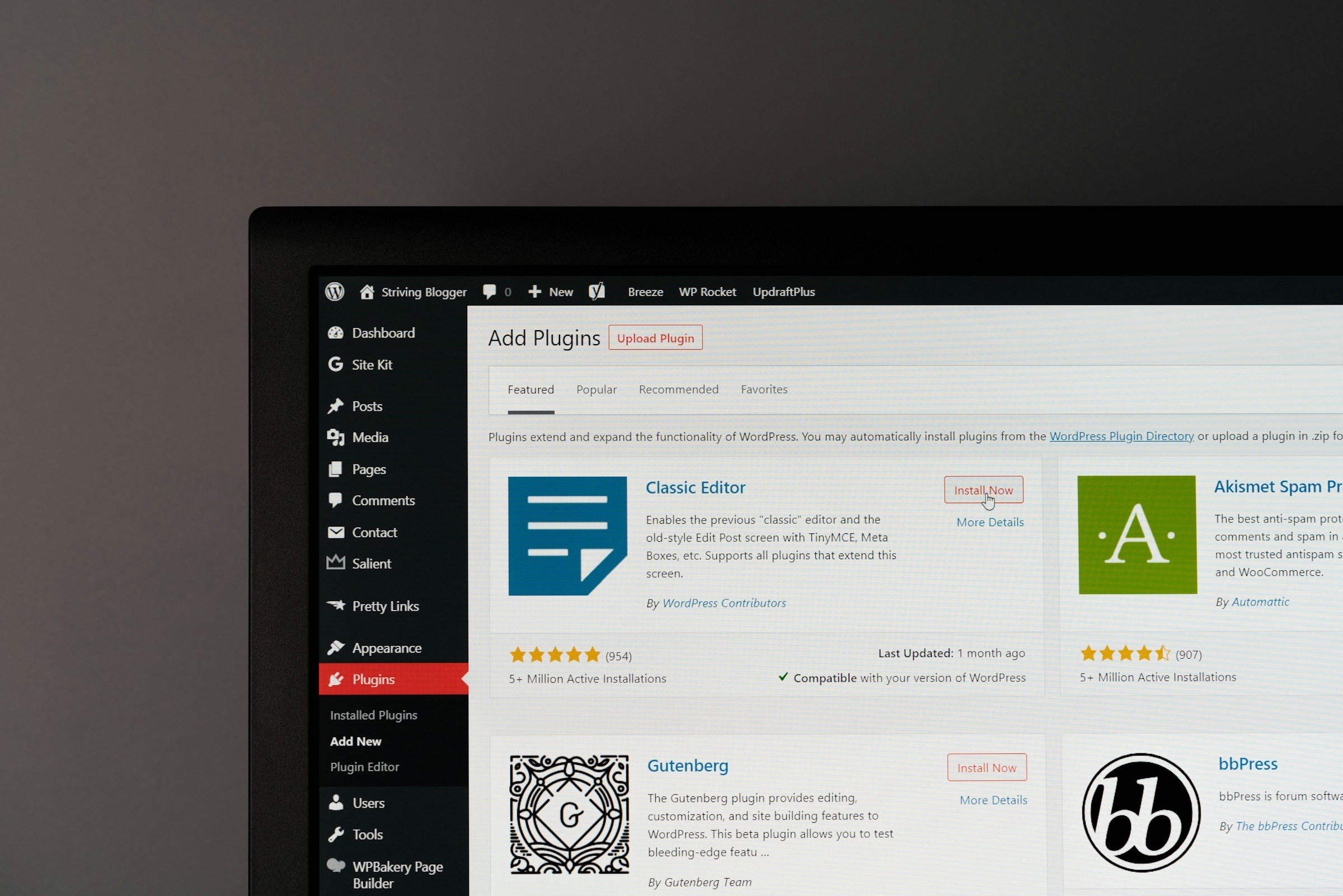
Plugins add powerful features to WordPress, but they can also slow your site down if they’re poorly built or doing too much work in the background.
Even one slow plugin can increase load times, hurt user experience, and affect your SEO.
Finding the exact plugin causing the problem isn’t always obvious, but it’s essential if you want a fast, reliable website.
Ignoring it can lead to frustrated visitors and lost traffic.
In this guide, you’ll learn simple, practical ways to identify slow plugins, test their impact, and fix performance issues step by step—without needing advanced technical skills.
A smart step is to find out how to control plugin performance effectively.
Signs a Plugin Is Slowing Down Your Site
Slow Page Load Times
If your website takes longer than usual to load, a plugin may be the cause. This often happens when a plugin adds heavy scripts, images, or extra requests to your pages.
Start by testing your site speed using tools like GTmetrix or PageSpeed Insights. If your load time is high and keeps increasing, it’s a strong sign that something is slowing things down.
Pay attention to pages that used to load quickly but now feel sluggish. A single plugin update or installation can trigger this change.
High Server Response Time (TTFB)
Time to First Byte (TTFB) measures how fast your server responds when someone visits your site. A high TTFB means your server is taking too long to process requests.
Plugins that run complex tasks in the background or make too many database queries often increase TTFB. This delay happens before your page even starts loading.
You can check TTFB in most speed testing tools. If it’s consistently high, a plugin may be overloading your server.
Admin Dashboard Lag
Your WordPress dashboard should feel smooth and responsive. If it becomes slow, unresponsive, or takes time to load pages, a plugin could be the issue.
This is common with plugins that run background processes, track data, or load extra scripts in the admin area. Examples include analytics tools, security scanners, and page builders.
Try navigating between dashboard pages. If there’s a delay or lag, especially after installing a new plugin, that’s a clear warning sign.
Sudden Performance Drops After Installing a Plugin
If your site slows down right after installing or updating a plugin, the cause is likely obvious. Performance issues that appear suddenly are easier to trace.
Always test your site speed before and after adding a new plugin. If you notice a drop, deactivate the plugin and check if performance improves.
Why Some WordPress Plugins Are Slow
Poor Coding Practices
Not all plugins are built the same. Some are written with speed and efficiency in mind, while others are not.
Poorly coded plugins may run unnecessary processes, load extra files, or fail to follow WordPress best practices. This creates extra work for your server on every page load.
Choose plugins from trusted developers, check reviews, and look for regular updates. Well-maintained plugins are more likely to run efficiently.
Too Many Database Queries
Every time someone visits your site, WordPress pulls data from the database. Some plugins increase this load by running too many queries.
This can slow down your site, especially if your hosting is limited or your database is already large. The more queries a plugin runs, the longer it takes to build each page.
Plugins that track data, generate reports, or load dynamic content are common causes. Over time, this can also make your database bloated and harder to manage.
Heavy Scripts and Styles Loading Everywhere
Many plugins load their scripts and styles on every page, even when they’re not needed. This increases page size and the number of requests the browser has to process.
For example, a form plugin might load its files on pages that don’t even have a form. This wastes resources and slows down load times.
Efficient plugins only load assets where needed. If a plugin doesn’t do this, it can quickly become a performance issue.
Conflicts With Other Plugins or Themes
Plugins don’t always work well together. When two plugins or a plugin and a theme conflict, they can create errors or duplicate processes.
This often leads to slower performance, broken features, or unexpected behavior. In some cases, both plugins try to handle the same task, doubling the workload.
Conflicts are harder to spot because they don’t always cause obvious errors. Instead, your site just becomes slower over time.
External API Calls Slowing Requests
Some plugins rely on external services to function. They send requests to third-party servers to fetch data, verify actions, or load content.
If those external servers are slow or unresponsive, your site has to wait. This delay directly affects your page load time.
Common examples include social media feeds, payment gateways, and tracking tools.
Too many external calls can significantly slow down your site, especially on shared hosting environments.
Quick Manual Check (Without Tools)
A fast way to spot a slow plugin is to test your site manually without using any tools.
Start by deactivating all your plugins at once, then load your website and check how it performs; if your site suddenly feels faster, you’ve confirmed that a plugin is causing the slowdown.
Next, reactivate your plugins one by one, testing your site speed after each activation. Take your time with this step, because the goal is to clearly notice when performance drops.
As soon as your site becomes slower again, the last plugin you activated is likely the problem. To be sure, deactivate that plugin and test again to confirm the speed improves.
This method works best on smaller sites with fewer plugins, where testing each one doesn’t take long and changes are easy to track.
It’s simple, reliable, and doesn’t require any technical knowledge, making it ideal for beginners who want quick answers.
Use Performance Testing Tools
GTmetrix
Go to the GTmetrix website, enter your website URL, and start a test. Wait for the report to load, then review the results.
For more accurate data, run the test more than once and use the same test location each time.
Focus first on the total load time. If it’s high, scroll down to the Waterfall tab. This shows every file your site loads and how long each one takes.
Look for files that take the longest to load or appear repeatedly.
If you notice scripts linked to a specific plugin taking up a large portion of the load time, that plugin may be slowing your site.
PageSpeed Insights
Enter your URL into PageSpeed Insights and review both mobile and desktop results. Pay close attention to three key metrics.
- Largest Contentful Paint (LCP) shows how quickly the main content loads; a slow LCP often means heavy plugins are delaying rendering.
- Total Blocking Time (TBT) measures how long your site is unresponsive due to heavy scripts, which are often added by plugins.
- Cumulative Layout Shift (CLS) tracks visual stability; poorly optimized plugins can cause layout shifts if they load elements late.
Use these metrics to spot performance issues tied to plugin behavior.
WebPageTest
WebPageTest provides deeper data for more detailed analysis. Enter your site URL, choose a test location, and run the test.
Once complete, review metrics like Time to First Byte, fully loaded time, and request count. Check the waterfall chart to see how resources load step by step.
This tool helps you identify delays caused by specific scripts, external services, or large files.
It’s especially useful when you need to confirm issues that simpler tools highlight but don’t fully explain.
Use Plugin Performance Profiling Tools
Query Monitor
Tracks database queries and slow hooks
Query Monitor is a powerful debugging plugin that shows what’s happening behind the scenes on your site.
Once installed, it displays detailed information in your admin bar, including database queries, PHP errors, and slow-loading hooks.
This helps you see which plugins are making excessive database requests or slowing down execution.
How to interpret results
Open any page while logged in and click the Query Monitor menu in the admin bar. Look for queries that take longer than others or appear too frequently.
Pay attention to the “Queries by Component” section, which groups activity by plugin.
If one plugin stands out with high query time or count, it’s likely affecting performance. Focus on patterns, not just single slow queries.
P3 (Plugin Performance Profiler)
Measures plugin load impact
P3 scans your site and measures how much time each plugin takes to load.
It runs a test across multiple pages and calculates the performance impact of every active plugin.
Visual breakdown of plugin usage
After the scan, P3 shows a simple visual report with a clear breakdown of plugin load times. You’ll see which plugins take up the most resources and how they compare to others.
This makes it easy to quickly spot heavy plugins without digging into technical data.
While the plugin is no longer actively maintained, it can still be useful for basic diagnostics on many sites.
New Relic (Advanced Users)
Server-level monitoring
New Relic is a more advanced tool that works at the server level. It monitors your entire application, not just WordPress, giving you a full view of performance.
Many hosting providers offer built-in support or easy integration.
Identifying slow transactions
With New Relic, you can track slow transactions, background processes, and external requests.
It shows exactly where time is being spent, including which plugins or functions are causing delays.
This level of detail is useful for larger or high-traffic sites where small inefficiencies can have a big impact.
Check Database Impact
Your database plays a big role in site speed, and some plugins can quietly slow it down by storing too much unnecessary data.
Plugins that track stats, logs, or user activity often add large amounts of data over time, which can make every page request slower.
To check this, access your database using phpMyAdmin from your hosting control panel or use a WordPress database plugin like WP-Optimize for a simpler view.
Once inside, look at the size of your tables and sort them to find the largest ones. Pay close attention to tables created by plugins, as these are often the source of bloat.
Also, check the wp_options table for autoloaded data, which loads on every page; if this becomes too large, it can significantly slow down your entire site.
Look for unusually large entries or data that no longer serve a purpose.
If you find them, consider cleaning up unused data, limiting what plugins store, or removing plugins that create excessive database load.
Identify Frontend vs Backend Slowness
Plugins Affecting Page Load (Frontend)
Frontend performance is what your visitors experience when they open your website.
If pages load slowly, feel heavy, or take time to become interactive, a plugin may be adding too many scripts, styles, or external requests.
Common causes include page builders, sliders, social sharing tools, and plugins that load assets on every page.
These increase load time and can delay how quickly content appears on the screen.
To spot this, test your site as a visitor would. Open your website in an incognito window and run a speed test. If load times are high, the issue is likely on the frontend.
Plugins Slowing Admin Dashboard (Backend)
Backend performance affects how fast your WordPress dashboard responds.
If it takes time to load pages, save posts, or switch between settings, a plugin may be slowing things down behind the scenes.
Plugins that run background tasks, such as backups, security scans, or analytics tracking, often impact the admin area.
These processes use server resources even when you’re not actively using them.
A slow dashboard doesn’t always affect visitors directly, but it makes managing your site harder and can still indicate deeper performance issues.
How to Test Both Separately
To get clear results, test the frontend and backend performance on their own.
For the frontend, use speed testing tools or manually check how fast your pages load in a private browser window.
For the backend, log into your dashboard and move between pages like Posts, Plugins, and Settings. Notice any delays or lag when clicking or saving changes.
If needed, deactivate plugins and test again in both areas. This helps you identify whether a plugin is affecting visitors, your admin experience, or both.
Common Types of Slow Plugins
Page Builders
Page builders make design easy, but they often add extra code to every page. This includes large CSS files, JavaScript, and complex layouts that take longer to load.
The more elements you use—like sliders, animations, and widgets—the heavier your pages become.
If your site feels slow after using a page builder, simplify layouts and remove unused elements to reduce the load.
Backup Plugins Running in Real-Time
Backup plugins are essential, but they can slow your site if they run too often or at the wrong time.
Real-time or frequent backups use server resources while visitors are on your site, which can increase load times.
This is especially noticeable on shared hosting. Schedule backups during low-traffic hours and avoid continuous backup modes unless absolutely necessary.
Security Scanners
Security plugins help protect your site, but full scans can be resource-heavy.
They check files, monitor changes, and scan for malware, which can slow both the frontend and admin dashboard.
If scans run too frequently, they can affect performance. Adjust scan schedules and disable features you don’t need to keep your site responsive.
Related Posts Plugins
Related posts plugins often calculate and display content dynamically based on tags, categories, or user behavior.
This process can involve multiple database queries on every page load. Some plugins generate results in real time, which increases server load.
To improve performance, use plugins that cache results or generate related posts in advance.
Plugins With Heavy External Scripts
Some plugins rely on external services, such as ads, social media feeds, or tracking tools.
These plugins load scripts from other servers, which adds delays if those servers are slow.
Each external request increases load time and can block your page from rendering quickly.
Limit the number of external scripts and only keep plugins that provide real value to your site.
What to Do After Finding a Slow Plugin
- Replace with a lightweight alternative: Swap the plugin for a faster, well-coded option that delivers the same core features with less impact on performance.
- Disable unnecessary features: Turn off settings or modules you don’t use to reduce background processes and resource usage.
- Load scripts conditionally: Configure the plugin (or use a helper plugin) to load its scripts only on pages where they are needed.
- Contact plugin developers: Report the issue and ask for guidance, as developers may offer fixes, updates, or better configuration options.
- Optimize or upgrade hosting: Improve server performance or move to better hosting if your current setup struggles to handle plugin demands.
Best Practices to Avoid Slow Plugins
- Install only necessary plugins: Keep your plugin list lean by using only what your site truly needs to reduce load and conflicts.
- Choose well-coded, updated plugins: Pick plugins that are regularly maintained and follow WordPress standards to ensure better performance and security.
- Check reviews and performance impact: Read user feedback and test results to avoid plugins known for slowing down websites.
- Regularly audit plugin performance: Periodically review and test your plugins to catch slowdowns early and remove anything unnecessary.
Final Thoughts
Finding slow plugins comes down to testing, observing changes, and using the right tools to confirm what’s causing the issue.
Once you identify the problem, take action by removing, replacing, or optimizing the plugin.
Make performance checks a regular habit, not a one-time fix. A fast site depends on ongoing maintenance and smart plugin choices.
Keep your setup simple, efficient, and up to date. Small improvements add up to a noticeably faster and more reliable website.
You should learn how to keep plugins efficient as your site grows.
FAQs
How do I know which plugin is slowing my site?
Use profiling tools or deactivate plugins one by one.
Can one plugin really slow down WordPress?
Yes, a poorly coded plugin can significantly impact performance.
Are premium plugins faster than free ones?
Not always because quality matters more than price.
How many plugins are too many?
It depends on quality, not quantity.
Should I delete inactive plugins?
Yes, to reduce security risks and clutter.





Hi, I’m Daniel Cacheton. I specialize in WordPress performance optimization and have spent 7+ years improving site speed, Core Web Vitals, and overall user experience. I share practical, no-fluff guides based on real testing to help you build faster WordPress websites.









