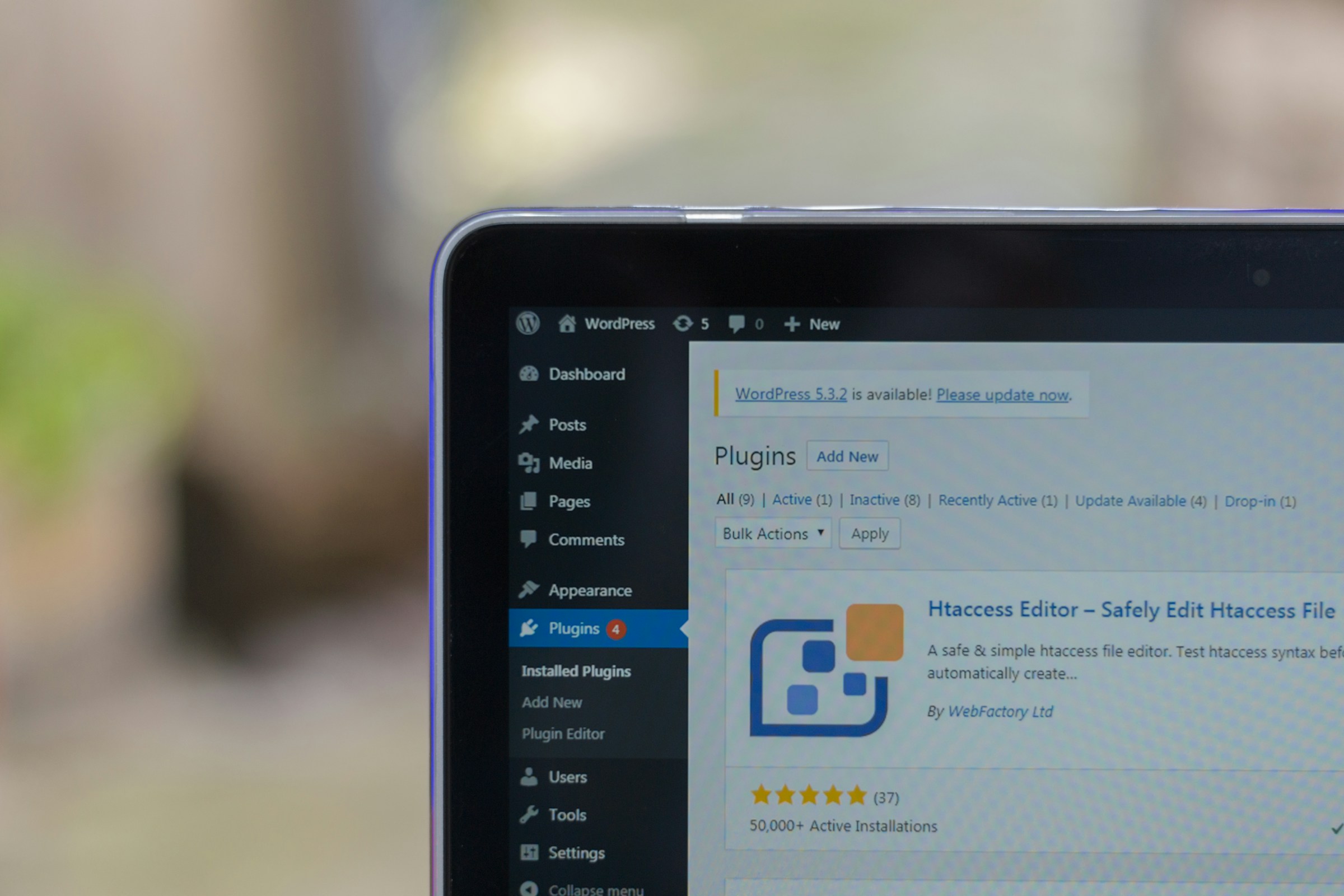
Plugins can make your WordPress site powerful, but they can also slow it down.
Even one poorly optimized plugin can increase load times, hurt user experience, and push visitors away.
The problem is, most slowdowns happen quietly. Extra scripts, heavy database queries, and unnecessary features can drag your site down without you noticing until it’s too late.
In this guide, you’ll learn exactly how to test plugin performance step by step.
You’ll see how to spot slow plugins, measure their impact, and make smarter decisions to keep your site fast and reliable.
It helps to understand why some plugins hurt performance more than others.
Why Testing Plugin Performance Is Important
Impact on Page Load Time
Every plugin adds code to your site. Some add a little. Others add a lot—extra scripts, styles, and background processes that run on every page.
When a plugin is poorly optimized, it increases how long your pages take to load. This can affect both frontend pages and your admin dashboard.
Even a small delay adds up, especially if multiple plugins are doing the same thing.
Testing helps you see exactly how much a plugin slows your site down. You can compare before and after results and decide if the performance cost is worth it.
Effect on Core Web Vitals
Core Web Vitals measure how fast and stable your site feels to users. Plugins can directly affect these scores.
For example, a plugin that loads large scripts can delay your Largest Contentful Paint (LCP).
One that shifts elements on the page can hurt your Cumulative Layout Shift (CLS). Heavy JavaScript can also slow down Interaction to Next Paint (INP).
If these metrics drop, your site feels slower and less responsive. Testing plugins helps you catch these issues early and fix them before they impact your rankings and user experience.
Server Resource Usage (CPU, Memory, Database)
Plugins don’t just affect what users see—they also affect your server behind the scenes.
Some plugins run frequent database queries. Others use more CPU or memory than necessary.
This can slow down your entire site, especially on shared hosting or lower-tier plans.
In extreme cases, one heavy plugin can cause timeouts or errors during traffic spikes.
By testing performance, you can identify which plugins are using the most resources and replace or optimize them.
SEO and Conversion Implications
Speed directly affects how your site performs in search results and how users behave.
Search engines favor fast websites. A slow site can lead to lower rankings, especially if Core Web Vitals are poor.
At the same time, users are less likely to stay on a slow page. Many will leave if it takes more than a few seconds to load.
This means fewer page views, lower engagement, and lost sales or leads.
Testing plugin performance helps you protect both your rankings and your conversions by keeping your site fast and reliable.
Signs a Plugin Is Slowing Down Your Site
Slow Page Load Times After Installation
One of the clearest signs is a sudden drop in speed right after installing or activating a plugin.
If your site was loading quickly before and has become noticeably slower after adding a plugin, that plugin is likely the cause.
This can show up as longer load times, delayed images, or pages taking a few extra seconds to fully display.
Always test your site before and after installing a plugin. If you see a clear slowdown, you’ve identified a potential issue early.
High Time to First Byte (TTFB)
Time to First Byte (TTFB) measures how long your server takes to start responding to a request.
A high TTFB often means something on the server is taking too long to process. Plugins that run heavy tasks, complex logic, or frequent database queries can increase this time.
If your TTFB jumps after enabling a plugin, it’s a strong sign that the plugin is slowing down your server response.
Increased Server Response Time
Server response time reflects how quickly your server handles requests overall.
Some plugins continuously run background processes or load extra resources on every page.
This adds strain to your server, making it slower to respond—not just for one page, but across your entire site.
You may notice this as inconsistent performance. Sometimes your site feels fast, other times it slows down without warning.
Admin Dashboard Lag
A slow admin dashboard is often overlooked, but it’s a key warning sign.
If clicking menus, editing posts, or saving changes feels delayed, a plugin could be the reason.
Many plugins load scripts and features in the admin area, which can slow things down significantly.
This doesn’t just affect performance, but it also reduces your productivity when managing your site.
Database Queries Increasing
Plugins often interact with your database. The problem starts when they do it inefficiently.
A poorly built plugin may run too many queries or repeat the same queries unnecessarily. This increases the load on your database and slows down page generation.
You might not see this directly, but tools like query monitors will reveal a spike in query count or slow queries after activating a plugin.
This is a clear signal that the plugin needs attention.
Tools You Need to Test Plugin Performance
To test plugin performance properly, you need the right tools. Each one shows a different part of the picture. Using them together gives you clear, reliable results.
1. Speed Testing Tools
Examples: GTmetrix, PageSpeed Insights
These tools measure how fast your site loads and highlight what’s slowing it down.
They show key metrics like load time, page size, and number of requests. More importantly, they let you compare results before and after installing a plugin.
This makes it easy to spot performance changes.
Use them to:
- Establish a baseline before installing a plugin
- Measure the impact after activation
- Identify large files or slow-loading elements
Run multiple tests to get consistent results.
2. Query Monitoring Tools
Example: Query Monitor (WordPress plugin)
These tools show what’s happening behind the scenes, especially in your database.
They help you see how many database queries are being run and which ones are slow. You can also identify which plugin is responsible for each query.
Use them to:
- Detect heavy or repeated database queries
- Find plugins causing backend slowdowns
- Monitor PHP errors or performance issues
This is one of the most effective ways to catch inefficient plugins.
3. Waterfall Analysis Tools
(Built into tools like GTmetrix and Pingdom)
A waterfall chart shows how every file on your page loads, step by step.
You can see which scripts load first, which ones block rendering, and which take the longest.
Plugins often add their own CSS, JavaScript, or external requests—and this is where they become visible.
Use waterfall analysis to:
- Identify slow-loading plugin assets
- Spot render-blocking scripts
- Detect unnecessary external requests
This helps you pinpoint exactly what a plugin is adding to your site.
4. Hosting-Level Monitoring
(If your hosting provider offers it)
Some hosting platforms provide built-in performance data for CPU usage, memory, and request handling.
This gives you a broader view of how plugins affect your server, not just your page speed. It’s especially useful for spotting resource-heavy plugins.
Use hosting tools to:
- Monitor CPU and memory spikes
- Track overall server load
- Identify performance issues during traffic increases
If your site slows down under load, this is where you’ll see why.
Pro Tip: Don’t rely on just one tool. Combine speed tests, query monitoring, and waterfall analysis to get a complete view of plugin performance.
Step-by-Step: How to Test Plugin Performance
Follow this process every time you install or evaluate a plugin. It keeps your results accurate and easy to compare.
Step 1: Create a Baseline
Start by testing your site before installing or activating the plugin.
Run a speed test and record your key metrics. Focus on:
- Load time
- Number of requests
- Page size
This gives you a clear reference point. Without a baseline, you won’t know if the plugin improves or hurts performance.
Run at least 2–3 tests and use the average result for better accuracy.
Step 2: Install and Activate the Plugin
Now install and activate the plugin you want to test.
Only test one plugin at a time. This is critical. If you test multiple plugins together, you won’t know which one is causing changes.
Avoid making any other changes to your site during this step. Keep everything else the same so your results stay reliable.
Step 3: Run Speed Tests Again
After activation, run the same speed tests again using the same tool and location.
Compare the new results with your baseline. Look closely at:
- Time to First Byte (TTFB)
- Fully loaded time
- Total requests
If these numbers increase, the plugin is adding load to your site. Small changes are normal. Large jumps are a warning sign.
Step 4: Analyze Waterfall Charts
Open the waterfall chart from your speed test results.
This shows exactly how each file loads on your page. Look for:
- Slow-loading scripts or styles
- Files added by the plugin
- Render-blocking resources
Pay attention to any new files that appear after installing the plugin. These are often the cause of delays.
Also, check for external requests. Plugins that load resources from third-party servers can slow your site further.
Step 5: Monitor Database Queries
Install and use a query monitoring tool to check database activity.
Look at how many queries are running and how long they take. Focus on:
- Slow queries
- Repeated queries
- Queries linked to the plugin
If a plugin adds many heavy queries, it can slow down every page load. This is especially important for dynamic sites like WooCommerce.
Step 6: Test Frontend and Backend Performance
Don’t just test your homepage. Check both the frontend and the admin area.
On the frontend:
- Open key pages and check load speed
- Navigate through your site
In the backend:
- Test dashboard responsiveness
- Edit posts or pages
- Check how quickly actions save
A plugin may seem fine on the frontend, but slow down your admin workflow.
Step 7: Test Under Real Conditions
Finally, test how your site performs in real-world scenarios.
Use different devices and browsers to see how performance varies. What works well on desktop may be slower on mobile.
Also test with:
- Caching enabled
- Caching disabled
This helps you understand how the plugin behaves in different setups. Some plugins rely heavily on caching, while others may conflict with it.
Advanced Testing Methods
Once you understand the basics, these methods help you test plugins more accurately and under real pressure.
Use them when you want deeper insights or when small performance changes matter.
Staging Environment vs Live Site Testing
A staging site is a copy of your live website where you can safely run tests.
Testing on staging lets you install, remove, and experiment with plugins without affecting real users.
This is the safest way to check performance, especially for heavier plugins or major changes.
However, staging environments may not fully match your live server conditions. Traffic, caching layers, and server load can differ.
Use this approach:
- Start testing on staging to avoid risks
- Repeat final checks on your live site during low traffic times
This gives you both safety and real-world accuracy.
Using A/B Testing for Performance Comparison
A/B testing compares two versions of your site to measure differences.
In this case, Version A is your site without the plugin, and Version B includes the plugin. You then compare performance metrics between the two versions.
This method helps remove guesswork. Instead of relying on single tests, you see consistent differences over multiple runs.
Use A/B testing to:
- Confirm if a plugin truly impacts speed
- Compare alternative plugins
- Measure performance changes over time
Keep everything else identical between versions for accurate results.
Load Testing (Simulating Multiple Users)
Load testing checks how your site performs when multiple users visit at the same time.
Some plugins work fine with one user but slow down under traffic. This is common with plugins that rely on database queries or background processes.
Load testing tools simulate real visitors and show how your server responds under pressure.
Focus on:
- Response time as user numbers increase
- Server errors or timeouts
- Stability during peak load
If performance drops quickly, the plugin may not scale well.
Profiling PHP Performance
PHP profiling shows how your server executes code and where time is being spent.
This is a more advanced method, but it’s very useful for identifying slow functions inside plugins. It helps you see exactly which parts of the plugin are causing delays.
With profiling, you can:
- Detect inefficient code execution
- Identify bottlenecks in plugin logic
- Understand why a plugin is slow, not just that it is
This method is especially helpful for developers or when dealing with complex performance issues.
Key Takeaway: Basic testing shows if a plugin is slow. Advanced testing shows why—and how it behaves under real conditions.
How to Identify a Bad Plugin
Not all plugins are built well. Some add useful features but come with serious performance costs. The goal is to spot these early before they affect your entire site.
Large Increase in Load Time
A bad plugin often causes a noticeable jump in load time.
If your site was loading in 2 seconds and suddenly takes 4 or more seconds after activation, that’s a clear red flag.
Even smaller increases matter, especially if they happen across multiple pages.
Always compare before and after results. If the plugin consistently slows down your site, it’s likely not optimized well.
Too Many HTTP Requests
Each plugin can add its own scripts, styles, fonts, or external resources.
When a plugin adds too many files, your browser has to make more requests to load the page. This increases load time and can block important content from appearing quickly.
Check your speed test results for a rise in total requests. If a single plugin adds many new files, it’s a sign of inefficient design.
High Database Usage
A poorly built plugin often relies heavily on the database.
It may run too many queries or execute slow queries on every page load. This puts pressure on your server and slows down dynamic content.
Use a query monitoring tool to check:
- Total number of queries
- Query execution time
- Repeated or unnecessary queries
If you see spikes after activating a plugin, it’s a strong warning sign.
Conflicts with Caching or Other Plugins
Some plugins don’t work well with caching systems or other plugins.
They may prevent pages from being cached, serve outdated content, or break functionality like carts and forms. This leads to slower performance and inconsistent behavior.
Test your site with caching enabled. If performance drops or issues appear, the plugin may be causing conflicts.
Poor Coding Practices
Bad plugins often follow poor development standards.
Common issues include:
- Loading scripts on every page instead of only where needed
- Not minimizing or optimizing files
- Running unnecessary background processes
- Lack of regular updates or support
You may not see this directly, but the effects show up in your tests. Consistent slowdowns, errors, or high resource usage usually point to poor coding.
If a plugin slows your site, adds unnecessary load, or creates conflicts, it’s not worth keeping—no matter how useful it seems.
What to Do If a Plugin Is Slow
Finding a slow plugin is only half the job. The next step is fixing the problem without breaking your site.
Replace with a Lightweight Alternative
If a plugin is clearly slowing your site, the best solution is often to replace it.
Look for alternatives that offer the same core features but with better performance. Check reviews, update history, and test results before switching.
Avoid plugins that try to do too much. Simpler plugins are usually faster and easier to manage.
Disable Unnecessary Features
Many plugins come packed with features you may not even use.
Each extra feature can add scripts, styles, or database activity. If the plugin allows it, turn off anything you don’t need.
Go through the settings carefully and disable:
- Extra modules
- Unused integrations
- Optional scripts or styling
This reduces the load without removing the plugin completely.
Use Selective Loading (Only Where Needed)
Some plugins load their assets on every page, even when they’re not required.
Selective loading fixes this by only running the plugin where it’s actually needed. For example, a contact form plugin should only load on the contact page.
You can achieve this using performance plugins or code-based solutions. The goal is simple: reduce unnecessary load on pages that don’t use the feature.
Optimize with Caching/CDN
Caching and CDNs can help reduce the impact of a slow plugin.
Caching stores pre-built versions of your pages, so the plugin doesn’t have to run every time. A CDN delivers static files faster by using servers closer to your visitors.
While this doesn’t fix the root problem, it can improve performance significantly when used correctly.
Always test after enabling caching to make sure the plugin still works as expected.
Contact the Developer or Check Updates
Sometimes the issue isn’t permanent.
Developers often release updates that fix performance problems or improve efficiency. Always check if you’re using the latest version.
If the issue continues, reach out to the developer. Provide clear details from your tests, such as slow queries or load time increases.
A well-maintained plugin will usually improve over time. If not, it may be better to move on.
Best Practices for Plugin Performance
- Always test before and after installing plugins
This helps you clearly see the performance impact and catch slowdowns early. - Avoid plugin overlap (duplicate functionality)
Using multiple plugins for the same task adds unnecessary load and complexity. - Keep plugins updated
Updates often include performance improvements, bug fixes, and better efficiency. - Use well-reviewed, regularly maintained plugins
Active plugins with good reviews are more likely to be optimized and reliable. - Limit total plugin count strategically
Focus on quality over quantity to reduce overhead and keep your site fast.
Common Mistakes to Avoid
- Testing multiple plugins at once
This makes it impossible to identify which plugin is causing performance issues. - Ignoring backend performance
A plugin may seem fine on the frontend, but slow down your admin dashboard significantly. - Relying on a single testing tool
One tool doesn’t show the full picture, so you may miss important performance issues. - Not clearing the cache before testing
Cached data can hide real performance changes and lead to inaccurate results. - Testing only once instead of multiple runs
Single tests can be inconsistent, so running multiple tests ensures more reliable data.
Final Thoughts
Testing plugin performance isn’t complicated. Check your baseline, compare results, and take action when something slows your site down.
Keep monitoring over time, not just once. Updates, new features, and added plugins can all change performance.
Choose plugins carefully, focus on quality, and remove what you don’t need. A fast site comes from smart decisions, not more plugins.
You can explore how plugins impact your site to improve overall performance.
FAQs
How do I know which plugin is slowing down my site?
Test plugins one at a time and compare speed results before and after activation.
Can I test plugin performance without affecting my live site?
Yes, use a staging site to safely test without impacting real users.
What metrics matter most when testing plugins?
Focus on load time, TTFB, number of requests, and database queries.
Are premium plugins always faster than free ones?
No, performance depends on code quality, not price.
How often should I test plugin performance?
Test whenever you install, update, or notice performance changes.





Hi, I’m Daniel Cacheton. I specialize in WordPress performance optimization and have spent 7+ years improving site speed, Core Web Vitals, and overall user experience. I share practical, no-fluff guides based on real testing to help you build faster WordPress websites.









