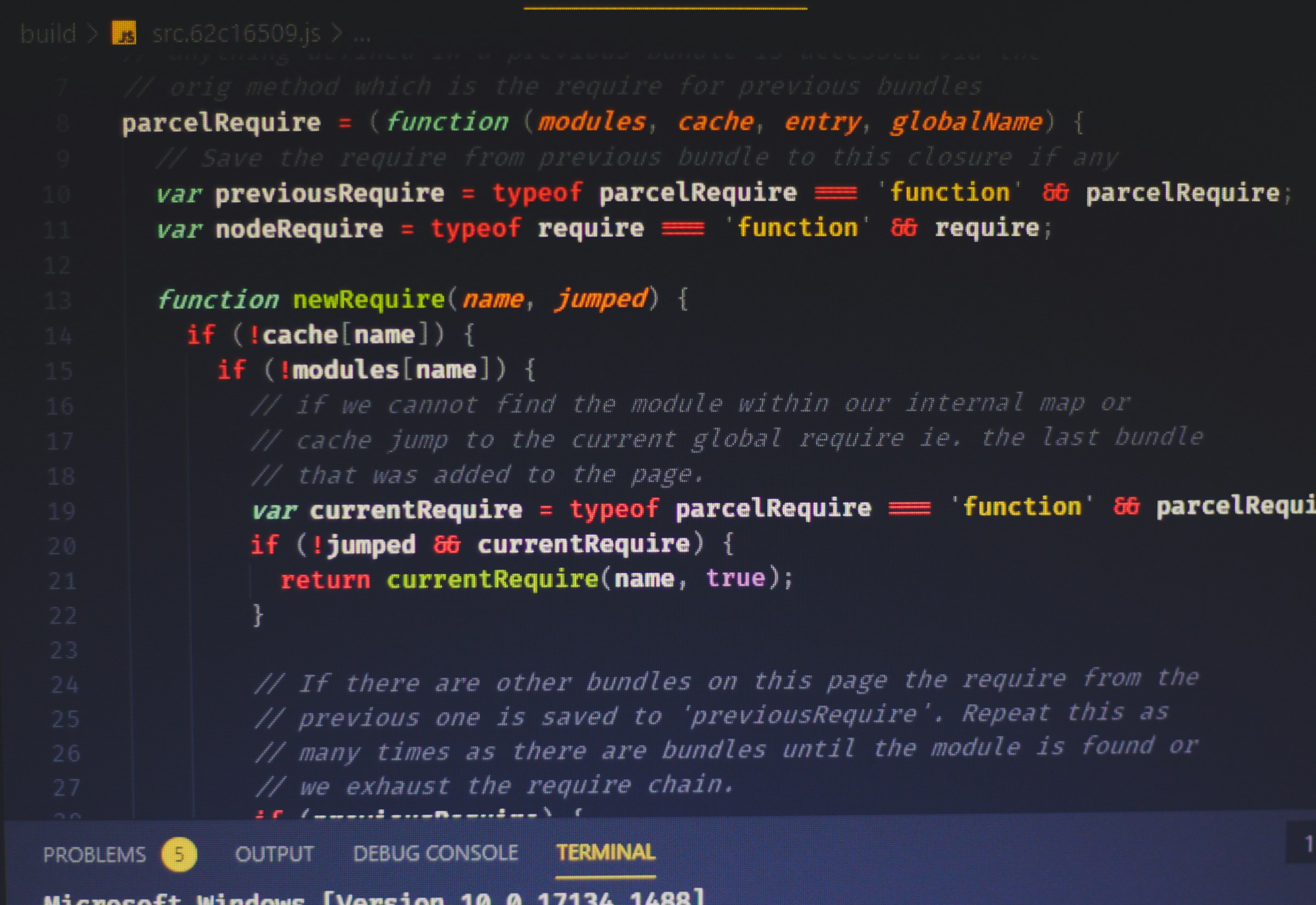
Unused CSS is code your website loads but never uses. It often comes from themes, plugins, or frameworks and quietly slows your site down.
This extra code forces browsers to process more than necessary. The result is slower load times, delayed content display, and a weaker user experience.
Removing unused CSS helps your pages load faster and run more smoothly.
It improves performance, supports better SEO, and keeps visitors engaged from the moment your site opens.
Improve load times today with our proven guide to optimizing CSS and JavaScript in WordPress.
What Is Unused CSS?
Unused CSS is any styling code that loads on your page but is never actually used to display content, meaning the browser still has to download and process it even though it has no visual effect.
This usually happens because many tools load full stylesheets by default instead of only what your page needs.
For example, WordPress themes and page builders often include large, pre-built design systems with styles for buttons, sliders, layouts, and sections you may never use, but they still load on every page.
Plugins are another common source, as they add their own CSS for features like forms, popups, or galleries, even if those features are only used on one page or not used at all.
Frameworks such as Bootstrap or Tailwind can also generate unused CSS because they provide thousands of ready-made classes, yet your site typically uses only a small portion of them.
All of this extra code builds up over time, increasing file sizes and forcing browsers to do unnecessary work, which slows down your site without adding any value.
Why Removing Unused CSS Is Important
Improves Page Load Speed
Unused CSS adds extra file size that your browser must download before showing your page. Larger files take longer to load, especially on slower connections or mobile devices.
When you remove unused CSS, you reduce the total amount of data being transferred. This allows your page to load faster and display content sooner.
Faster pages keep users engaged and reduce the chance they leave before your site fully loads.
Reduces Render-Blocking Resources
CSS is render-blocking by default, which means the browser must process it before displaying visible content. When too much unused CSS is loaded, it delays this process.
The browser spends time parsing styles that are never applied, slowing down the initial render.
By removing unused CSS, you reduce this delay and allow the browser to focus only on styles that matter.
This leads to quicker visual loading and a smoother experience for users.
Enhances Core Web Vitals (LCP, FCP)
Core Web Vitals measure how quickly users see and interact with your content.
Metrics like Largest Contentful Paint (LCP) and First Contentful Paint (FCP) are directly affected by how fast your page renders.
Unused CSS slows down these metrics because it delays when key elements appear on screen. Cleaning up unnecessary styles helps your main content load faster.
This improves both LCP and FCP scores, which are important signals for user experience and search rankings.
Better SEO Performance
Search engines prioritize fast, user-friendly websites. When your site loads quickly and delivers content without delays, it sends positive signals to search engines.
Removing unused CSS improves speed and Core Web Vitals, both of which impact SEO.
A faster site can rank higher, attract more visitors, and provide a better overall experience.
Clean, optimized CSS also makes your site more efficient and easier to maintain over time.
How to Identify Unused CSS
Using Browser Tools (Chrome DevTools Coverage Tab)
The most accurate way to find unused CSS is by using the Coverage tool in Chrome DevTools, which shows exactly which styles are used and which are not on a specific page.
Open your website in Chrome, right-click and click “Inspect,” then open the menu (three dots) → “More tools” → “Coverage,” and reload the page to start recording.
The tool will track every CSS file and display how many bytes are used versus unused, making it easy to spot large files with wasted code.
Once the scan is complete, you’ll see a list of CSS files with a visual breakdown, where unused code is clearly highlighted, often in red.
Clicking on any file lets you inspect the exact selectors that are not being used, helping you decide what can be safely removed.
This method is highly reliable because it reflects real usage during page load, but remember it only analyzes the current page state, so you should test multiple pages and interactions for full accuracy.
Using Performance Tools (PageSpeed Insights & GTmetrix)
Performance tools give you a quick overview without needing a technical setup.
Google PageSpeed Insights runs a full audit of your page and flags issues like “Reduce unused CSS,” showing which files contain unnecessary styles and how much data you can save.
It also estimates potential performance gains, helping you prioritize what to fix first.
Similarly, GTmetrix provides detailed reports that highlight unused CSS under performance recommendations, often listing specific stylesheets contributing to the problem.
These tools don’t show line-by-line unused code like DevTools, but they are excellent for identifying problem areas fast and tracking improvements over time.
They are best used as a starting point before diving deeper into manual analysis.
Manual Inspection Tips
Manual inspection helps you verify findings and avoid breaking your site.
Start by reviewing your stylesheets and checking if certain files or sections are tied to features you no longer use, such as old layouts, sliders, or plugin styles.
Then compare your CSS against actual page elements by inspecting sections of your site and confirming whether specific classes are still applied.
Since tools often analyze one page at a time, repeat this process across key pages like your homepage, blog posts, and landing pages to avoid removing styles used elsewhere.
Keep a simple list of unused files or selectors as you go, so you can safely clean them up later.
This step ensures accuracy and prevents accidental design issues, especially on larger websites.
Methods to Remove Unused CSS
1. Manual Removal (Advanced)
Auditing Stylesheets
Start by identifying large CSS files using tools like Chrome DevTools or GTmetrix, then open those files and review what they contain.
Focus on styles tied to features you no longer use, such as old layouts, sliders, or plugin-related elements.
Many themes and plugins load global styles across all pages, so your goal is to match each stylesheet with actual elements on your site.
This step helps you understand what is safe to remove and prevents guesswork.
Deleting Unused Selectors
Once you know what is not being used, you can begin removing unused selectors directly from your CSS files.
This involves deleting specific classes, IDs, or entire sections of code that are never applied to your pages.
Work in small steps and test after each change. If you remove too much at once, it becomes harder to trace issues.
This method gives you full control, but it requires careful testing across multiple pages to ensure nothing important is removed.
Risks and Precautions
Manual removal can break your layout if you delete styles that are used dynamically or only appear under certain conditions, such as hover effects, mobile views, or JavaScript-triggered elements.
Some CSS may not appear in initial tests, but is still required later. Always back up your site before editing, test on different devices, and use a staging environment if possible.
This method is powerful but best suited for experienced users who understand how CSS is applied.
Using Online Tools
PurgeCSS
PurgeCSS is a popular tool that scans your HTML and JavaScript files, then removes any CSS selectors that are not found in your content.
It works well for modern workflows where your site structure is clearly defined, such as static sites or projects using frameworks.
UnCSS
UnCSS works in a similar way but goes a step further by loading your actual pages and analyzing which styles are used during rendering.
This makes it more accurate for real-world scenarios, especially when dealing with dynamic content.
How These Tools Work
Both tools automate the process by scanning your site’s content and comparing it against your CSS files.
Any selectors not found in your HTML are removed, reducing file size significantly.
This approach is fast and efficient, but it can miss styles used dynamically (like those triggered by JavaScript), so you may need to safelist certain classes to prevent issues.
Using WordPress Plugins (Beginner-Friendly)
Asset CleanUp
Asset CleanUp lets you disable CSS files on specific pages where they are not needed.
It scans each page and lists all loaded CSS and JavaScript files, allowing you to unload unnecessary assets with a few clicks.
This is useful when plugins load styles globally but are only needed on certain pages.
Perfmatters
Perfmatters offers a built-in “Remove Unused CSS” feature that automatically handles the process for you.
It scans your pages, keeps only the CSS that is actually used, and removes the rest. This reduces file size and improves performance without manual editing.
WP Rocket (Remove Unused CSS Feature)
WP Rocket provides an automated solution that generates “used CSS” for each page and removes everything else.
It replaces full stylesheets with only the necessary styles, reducing page size, improving load time, and eliminating render-blocking CSS.
Why Plugins Are the Best Starting Point
Plugins are the easiest and safest method for beginners because they automate complex tasks and reduce the risk of breaking your site.
They also include fallback options and testing features, making it easier to optimize performance without deep technical knowledge.
How to Remove Unused CSS in WordPress (Step-by-Step)
1. Install and Activate a Plugin
The easiest way to remove unused CSS in WordPress is by using a performance plugin that automates the process.
Popular options like WP Rocket, Perfmatters, and Asset CleanUp are built specifically for this task and require little technical setup.
To get started, go to your WordPress dashboard → Plugins → Add New, search for your chosen plugin, then install and activate it.
Once activated, the plugin integrates into your site and prepares optimization features you can control from its settings.
Most modern plugins are designed to work safely with themes and page builders, reducing the risk of breaking your layout.
2. Enable Unused CSS Removal
After activation, open the plugin settings and look for options like “Remove Unused CSS” or “Optimize CSS Delivery.”
For example, WP Rocket includes a feature that generates “used CSS” for each page and removes everything else, while Perfmatters offers a similar automated cleanup option.
Enable this setting and save your changes. The plugin will then scan your site, identify which styles are actually used on each page, and create optimized CSS files.
This process may take a few minutes depending on your site size, but it runs in the background and requires no manual coding.
3. Test Your Site After Changes
Once the feature is enabled, carefully check your website to make sure everything still looks correct.
Start with your homepage, then review key pages such as blog posts, landing pages, and contact forms.
Pay close attention to buttons, menus, mobile layouts, and interactive elements, since these are more likely to be affected by missing styles.
If something looks broken, most plugins allow you to exclude specific CSS files or disable the feature on certain pages.
4. Clear Cache and Recheck Performance
After confirming your site is working properly, clear all caches to apply the changes fully.
This includes your WordPress cache plugin, browser cache, and any CDN cache if you are using one.
Once cleared, run your site through tools like Google PageSpeed Insights or GTmetrix again to measure improvements.
You should see reduced CSS file sizes, fewer render-blocking resources, and better load times.
Regularly recheck performance as you update your site, since new themes or plugins can introduce unused CSS again over time.
Best Practices
- Avoid loading unnecessary CSS files – Only load styles where they are needed by disabling unused files on specific pages.
- Use lightweight themes – Choose themes with minimal built-in styles to reduce excess CSS from the start.
- Limit plugin usage – Fewer plugins mean fewer stylesheets loading across your site.
- Minify CSS after cleanup – Compress your CSS files to reduce file size and improve load speed.
- Test changes before going live – Always check your site on different pages and devices to prevent layout issues.
Common Mistakes to Avoid
Removing Critical CSS by Accident
Critical CSS is the styling required to display the visible part of your page when it first loads.
If you remove it, your site may appear broken, unstyled, or flash content incorrectly before loading fully.
This often happens when tools or plugins mistakenly classify important styles as unused.
To avoid this, always use tools that support safelisting or automatically preserve critical CSS. Test above-the-fold content first, since this is where critical styles matter most.
Breaking Layout or Design
Removing unused CSS can sometimes affect elements that only appear under certain conditions, such as dropdown menus, popups, or hover effects.
These styles may not be detected during initial scans but are still necessary for proper functionality.
When they are removed, layouts can shift, or interactive features may stop working.
To prevent this, review all key sections of your site, including navigation menus, forms, and dynamic elements.
If something breaks, exclude the affected CSS file or specific selectors from removal.
Not Testing on Mobile Devices
A site may look perfect on a desktop but break on mobile if important responsive styles are removed.
Many themes use separate CSS rules for smaller screens, and these may not always be detected during standard testing.
Always check your site on different screen sizes or use browser device simulation tools.
Focus on layout spacing, font sizes, menus, and touch interactions. This ensures your site remains fully functional and user-friendly across all devices.
Over-Optimizing
Trying to remove every possible line of unused CSS can create more problems than it solves.
Some styles are intentionally loaded globally for flexibility or future use, and removing them can lead to constant fixes later.
Over-optimization also increases the risk of missing edge cases, especially on larger websites.
Instead, aim for a balanced approach by removing clearly unused CSS while keeping essential and reusable styles intact.
The goal is better performance without sacrificing stability.
Final Thoughts
Removing unused CSS is one of the fastest ways to improve your website’s speed and overall performance.
It reduces file size, speeds up page loading, and creates a smoother experience for your visitors.
Start small and use the methods that match your skill level. Then test your site to make sure everything works as expected.
Run your website through a speed testing tool today and take action on the results. Small changes can lead to noticeable improvements.
For the full strategy, check our complete roadmap to WordPress CSS and JavaScript optimization.
FAQs
What is unused CSS in simple terms?
CSS code that loads on your page but is not actually used to style anything.
Is removing unused CSS safe?
Yes, if done carefully using reliable tools or plugins and proper testing.
Can removing unused CSS break my website?
Yes, if important styles are removed, which is why testing is essential.
What tools are best for removing unused CSS?
Tools like Chrome DevTools, PurgeCSS, UnCSS, and plugins like WP Rocket or Perfmatters work well.
Do I need a plugin to remove unused CSS?
No, but plugins are the easiest and safest option for most users.





Hi, I’m Daniel Cacheton. I specialize in WordPress performance optimization and have spent 7+ years improving site speed, Core Web Vitals, and overall user experience. I share practical, no-fluff guides based on real testing to help you build faster WordPress websites.









